---
url: https://rspack.rs/guide/start/introduction.md
---
> For AI agents: the complete documentation index is available at https://rspack.rs/llms.txt, the full documentation bundle is available at https://rspack.rs/llms-full.txt.
# Introduction
Rspack (pronounced as
`/'ɑrespæk/`
,
) is a fast Rust-based bundler for the web.
It modernizes the webpack API to
enable seamless replacement of webpack while
delivering lightning-fast build speeds.
## Why Rspack?
Rspack was initially created to solve performance problems encountered at ByteDance, a tech company that maintains many large monolithic app projects with complex bundling requirements. Production build times had grown to ten minutes or even half an hour in some cases, and cold start times could exceed several minutes. After experimenting with many bundlers and optimization ideas, a common set of requirements emerged:
- **Dev mode startup performance.** `npm run dev` is a command that developers may invoke many times per hour. Engineering productivity suffers if startup time exceeds 10-15 seconds.
- **Fast builds.** `npm run build` is used in CI/CD pipelines and directly impacts merging productivity and application delivery time. Large applications may spend 20-30 minutes running these pipelines, and bundling time is often a major contributor.
- **Flexible configuration.** From experimenting with various popular bundlers, we found that one-size-fits-all configurations encountered many problems when trying to accommodate real world projects. A major advantage of webpack is its flexibility and ease of accommodating customized requirements for each project. That same flexibility means legacy projects often face steep migration costs when moving away from webpack.
- **Production optimization capabilities.** All of the existing bundling solutions also had various limitations when optimizing for a production environment, such as insufficiently fine-grained code splitting. Rspack has an opportunity to rethink these optimizations from the ground up, leveraging Rust-specific features such as multithreading.
## Current status of Rspack
As of August 2024, we have released [Rspack 1.0](https://rspack.rs/blog/announcing-1-0.md), which we consider production-ready because it covers most of webpack's APIs and features.
Rspack is currently compatible with almost all loaders in the community. For the 50 most downloaded [webpack plugins](https://rspack.rs/plugins/community-plugin-compatibility.md), more than 85% can be used in Rspack or have an alternative.
:::tip Learn more
- See [Rspack blogs](https://rspack.rs/blog/index.md) for the latest updates on Rspack.
- See [Roadmap](https://rspack.rs/misc/planning/roadmap.md) for the future plans of Rspack.
:::
## Comparisons with other tools
### Compared with webpack
[webpack](https://webpack.js.org/) is perhaps the most mature modern bundler, with an active ecosystem, flexible configuration, and rich features.
- **Rust language efficiency:** webpack's competitors frequently challenge it based on performance, especially for larger projects. Rspack solves this using the Rust language, which was specifically designed to prioritize performance, topping benchmarks for both speed and memory management. Rust also provides many compiler safeguards to avoid common pitfalls of other native languages such as C++.
- **Highly parallelized architecture:** webpack is limited by JavaScript's weak support for multithreading. By contrast, Rspack's native code takes full advantage of modern multi-core CPUs.
- **Built-in implementations of essential bundling features:** webpack's hook system famously enables a vast landscape of loaders and plugins contributed by the community. Unfortunately these third-party packages can frequently lead to performance bottlenecks, sometimes because the authors did not have deep knowledge of webpack internals, and sometimes because the hook system by nature limits how algorithms can interact. Rspack provides built-in plugins for key features to improve performance.
- **Optimized hot module replacement (HMR):** No matter how large your project is, ensuring a great experience for HMR places even steeper demands on build times than ordinary bundling. Rspack incorporates a specialized incremental compilation strategy to address this requirement.
### Compared with Vite
If you are looking for an out-of-the-box development experience similar to Vite, we recommend using [Rsbuild](https://rsbuild.rs/), a build tool powered by Rspack. See [Rsbuild's comparison with Vite](https://rsbuild.rs/guide/start/#vite) to learn about their differences.
### Compared with esbuild
[esbuild](https://esbuild.github.io/) achieves very good performance by implementing nearly all operations in Golang except for some JavaScript plugins. However, esbuild's feature set is not as complete as webpack, for example missing HMR and [optimization.splitChunks](https://rspack.rs/config/optimization.md#optimizationsplitchunks) features.
### Compared with Turbopack
Turbopack is implemented in Rust like Rspack, but Turbopack started over with a redesigned architecture and configuration. This brings some benefits, but presents a steeper migration cost for projects that rely on webpack and its extensive ecosystem.
### Compared with Rollup
Rollup is built around ES modules and supports multiple output formats. Rspack covers a broader range of build scenarios, including ESM and CJS library outputs as well as application bundles, while continuously improving build performance and memory usage.
### Compared with Parcel
The overall architecture of Rspack shares many similarities with [Parcel](https://parceljs.org/). For example, both treat CSS assets as built-in supported modules and both support filter-based transformers. However, Parcel focuses more on out-of-the-box usability, while Rspack focuses more on providing flexible configuration for higher-level frameworks and tools. Parcel introduced features like the Unified Graph and built-in HTML support. Rspack also plans to support these features in the future.
## Online example
Try Rspack online with the [Rsbuild StackBlitz example](https://stackblitz.com/~/github.com/rstackjs/rsbuild-stackblitz-example).
## Next steps
Please read [Quick start](https://rspack.rs/guide/start/quick-start.md) to start using Rspack.
Welcome to the [GitHub Discussions](https://github.com/web-infra-dev/rspack/discussions) and [Discord](https://discord.gg/sYK4QjyZ4V) to communicate with us.
---
url: https://rspack.rs/guide/start/quick-start.md
---
> For AI agents: the complete documentation index is available at https://rspack.rs/llms.txt, the full documentation bundle is available at https://rspack.rs/llms-full.txt.
# Quick start
Get up to speed quickly with a new Rspack based project.
- [Create a new project](#create-a-new-project): Choose the right tool to create a new project powered by Rspack.
- [Migrating from existing projects](#migrating-from-existing-projects): Migrate from a webpack-based project to Rspack.
## Ecosystem
As a low-level bundler, Rspack has a rich ecosystem that includes various frameworks, tools, and solutions. These ecosystem projects cover different aspects from frameworks to development tools, meeting diverse development needs across scenarios and providing an out-of-the-box experience.
See the [Ecosystem](https://rspack.rs/guide/start/ecosystem.md) page to explore these ecosystem projects.
## Environment preparation
Rspack supports using [Node.js](https://nodejs.org/), [Deno](https://deno.com/), or [Bun](https://bun.sh/) as the JavaScript runtime.
You can refer to the following installation guides and choose one runtime:
- [Install Node.js](https://nodejs.org/en/download)
- [Install Bun](https://bun.com/docs/installation)
- [Install Deno](https://docs.deno.com/runtime/getting_started/installation/)
:::tip Version requirements
- Rspack v2 requires Node.js version 20.19+, 22.12+.
- Rspack v1 requires Node.js 18.12.0 or higher.
:::
:::details For unsupported platforms
If you are using a niche platform, Rspack may not provide native support for it. In this case, please manually install `@rspack/binding-wasm32-wasi` as a fallback. The Wasm build is compatible with most platforms.
Currently supported platforms:
- `darwin-arm64`
- `darwin-x64`
- `linux-arm64-gnu`
- `linux-arm64-musl`
- `linux-riscv64-gnu`
- `linux-riscv64-musl`
- `linux-ppc64-gnu`
- `linux-s390x-gnu`
- `linux-x64-gnu`
- `linux-x64-musl`
- `win32-arm64-msvc`
- `win32-ia32-msvc`
- `win32-x64-msvc`
:::
## Create a new project
### Web applications
For web applications, we recommend [Rsbuild](https://rsbuild.rs/). It builds on Rspack with defaults for common build tasks, a dev server, and integrations for frameworks such as React and Vue to help you start developing quickly. You can customize the build through configuration and plugins, or adjust the underlying Rspack configuration.
Run the following command and follow the prompts:
```sh [npm]
npm create rsbuild@latest
```
```sh [yarn]
yarn create rsbuild
```
```sh [pnpm]
pnpm create rsbuild@latest
```
```sh [bun]
bun create rsbuild@latest
```
```sh [deno]
deno init --npm rsbuild@latest
```
:::tip Non-interactive mode
To skip interactive prompts, specify a directory and template, for example: `npx -y create-rsbuild --dir my-app --template react`.
:::
> See [Rsbuild - Quick start](https://rsbuild.rs/guide/start/quick-start) to learn more.
### JavaScript libraries
For JavaScript libraries that other projects consume, such as utility packages and component libraries, we recommend [Rslib](https://rslib.rs/). It builds on Rsbuild with defaults for library development and supports generating ESM and CommonJS output and TypeScript declarations, so you can publish your library to npm or share it across projects.
Run the following command and follow the prompts:
```sh [npm]
npm create rslib@latest
```
```sh [yarn]
yarn create rslib
```
```sh [pnpm]
pnpm create rslib@latest
```
```sh [bun]
bun create rslib@latest
```
```sh [deno]
deno init --npm rslib@latest
```
:::tip Non-interactive mode
To skip interactive prompts, specify a directory and template, for example: `npx -y create-rslib --dir my-lib --template node-js`.
:::
> See [Rslib - Quick start](https://rslib.rs/guide/start/quick-start) to learn more.
### Using Rspack CLI directly
If you want to set up your own build workflow and manage the Rspack configuration directly, you can use Rspack CLI. It provides development, build, and preview commands, while you choose and configure loaders, plugins, and other build capabilities yourself.
#### Using a scaffold
Run the following command and follow the prompts to create a project from a template:
```sh [npm]
npm create rspack@latest
```
```sh [yarn]
yarn create rspack
```
```sh [pnpm]
pnpm create rspack@latest
```
```sh [bun]
bun create rspack@latest
```
```sh [deno]
deno init --npm rspack@latest
```
:::tip Non-interactive mode
To skip interactive prompts, specify a directory and template, for example: `npx -y create-rspack --dir my-app --template react`.
:::
#### Manual installation
You can also install Rspack CLI and create a configuration file manually. Start by creating a project directory and generating an npm `package.json` file:
```bash
mkdir rspack-demo
cd rspack-demo
npm init -y
```
Then install [@rspack/core](https://www.npmjs.com/package/@rspack/core) and [@rspack/cli](https://www.npmjs.com/package/@rspack/cli) as dev dependencies:
```sh [npm]
npm add @rspack/core @rspack/cli -D
```
```sh [yarn]
yarn add @rspack/core @rspack/cli -D
```
```sh [pnpm]
pnpm add @rspack/core @rspack/cli -D
```
```sh [bun]
bun add @rspack/core @rspack/cli -D
```
```sh [deno]
deno add npm:@rspack/core npm:@rspack/cli -D
```
Update your build scripts to use Rspack CLI:
```js title="package.json"
{
"scripts": {
"dev": "rspack dev",
"build": "rspack build",
"preview": "rspack preview"
}
}
```
Next, see [Configure Rspack](https://rspack.rs/config/index.md) to learn about how to configure Rspack.
## Migrating from existing projects
If you need to migrate from an existing project to Rspack, you can refer to the following guides:
- [Migrating from webpack to Rspack](https://rspack.rs/guide/migration/webpack.md)
- [Migrating from webpack to Rsbuild](https://rsbuild.rs/guide/migration/webpack)
- [Migrating from Create React App to Rsbuild](https://rsbuild.rs/guide/migration/cra)
- [Migrating from Vue CLI to Rsbuild](https://rsbuild.rs/guide/migration/vue-cli)
- [Migrating from Vite to Rsbuild](https://rsbuild.rs/guide/migration/vite)
- [Migrating from Tsup to Rslib](https://rslib.rs/guide/migration/tsup)
- [Migrating from Storybook](https://rspack.rs/guide/migration/storybook.md)
## Install canary version
When you need to test or verify the features of Rspack that are not yet released to the stable version, you may need to use the canary version.
The canary version of Rspack has a `-canary` suffix in the package scope. For example, the canary package name of `@rspack/core` is `@rspack-canary/core`. To use these versions, you can configure the overrides of the package manager (npm/yarn/pnpm/bun).
Here is an example of using pnpm overrides:
```json title="package.json"
{
"pnpm": {
"overrides": {
"@rspack/core": "npm:@rspack-canary/core@latest"
},
"peerDependencyRules": {
"allowAny": ["@rspack/*"]
}
}
}
```
Rspack community also provides [install-rspack](https://github.com/rstackjs/install-rspack) tool to easily install canary version:
```shell
npx install-rspack --version latest # Install the latest version
npx install-rspack --version canary # Install the canary version
npx install-rspack --version 1.0.0-canary-d614005-20250101082730 # Install the specified canary version
```
---
url: https://rspack.rs/guide/start/ecosystem.md
---
> For AI agents: the complete documentation index is available at https://rspack.rs/llms.txt, the full documentation bundle is available at https://rspack.rs/llms-full.txt.
# Ecosystem
## Rstack
Rspack is part of Rstack, the fast, unified JavaScript toolchain for developers and agents.
### Rsbuild
Build tool
[Rsbuild](https://github.com/web-infra-dev/rsbuild) is a high-performance build tool powered by Rspack. It provides a set of thoughtfully designed default build configs, offering an out-of-the-box development experience and can fully unleash the performance advantages of Rspack.
### Rslib
Library development tool
[Rslib](https://github.com/web-infra-dev/rslib) is a library development tool based on Rsbuild, which reuses the carefully designed build configuration and plugin system of Rsbuild. It allows developers to create JavaScript libraries in a simple and intuitive way.
### Rspress
Static site generator
React
[Rspress](https://github.com/web-infra-dev/rspress) is a static site generator based on Rsbuild, React and MDX. It comes with a default documentation theme, and you can quickly build a documentation site with Rspress. You can also customize the theme to meet your personalized static site needs, such as blog sites, product homepages, etc.
### Rsdoctor
Build analyzer
[Rsdoctor](https://rspack.rs/guide/diagnostics/use-rsdoctor.md) is a build analyzer that can visually display the build process, such as compilation time, code changes before and after compilation, module reference relationships, duplicate modules, etc.
### Rstest
Testing framework
[Rstest](https://rspack.rs/guide/integrations/rstest.md) is a testing framework powered by Rspack. It delivers comprehensive, first-class support for the Rspack ecosystem, enabling seamless integration into existing Rspack-based projects.
### Rslint
Linter
[Rslint](https://github.com/web-infra-dev/rslint) is a high-performance JavaScript and TypeScript linter based on typescript-go. It offers strong compatibility with the ESLint and TypeScript-ESLint ecosystem, allowing for seamless replacement, and provides lightning-fast linting speeds.
### Rstack CLI
Unified CLI
[Rstack CLI](https://github.com/rstackjs/rstack-cli) brings the Rstack toolchain together through a unified command-line interface and configuration. It provides a consistent workflow for building applications, libraries, and documentation, running tests, linting, and formatting.
## Community integrations
### Angular Rspack
Build tool
Angular
[Angular Rspack](https://nx.dev/docs/technologies/angular/angular-rspack) is a set of plugins and tools to make it easy and straightforward to build Angular applications with Rspack and Rsbuild.
### Docusaurus
Static site generator
React
[Docusaurus](https://docusaurus.io/) is a static site generator for building, deploying, and maintaining open source project websites easily.
Docusaurus supports Rspack as the bundler since v3.6, see [Docusaurus Faster](https://docusaurus.io/blog/releases/3.6#docusaurus-faster) for details.
### Extension.js
Build tool
Browser extensions
[Extension.js](https://extension.js.org/) is a framework for creating, developing and building browser extensions for Chrome, Edge, Firefox and Safari from a single codebase.
Extension.js builds with Rspack and resolves the entry points declared in `manifest.json` into the Rspack entry graph.
### Modern.js
Web framework
React
[Modern.js](https://modernjs.dev/) is a Rsbuild-based progressive React framework that supports nested routes, SSR, and provides out-of-the-box CSS solutions such as styled components and Tailwind CSS.
### Meteor
Web framework
[Meteor](https://www.meteor.com/) is a full-stack JavaScript platform for developing modern web and mobile applications.
[Meteor 3.4](https://blog.meteor.com/meteor-3-4-is-out-rspack-integration-4x-faster-builds-8x-smaller-bundles-and-extended-bundler-36600fb45976) provides an Rspack integration with faster builds and smaller bundles.
### NestJS
Node.js framework
[NestJS](https://nestjs.com/) is a TypeScript framework for building scalable server-side applications on Node.js.
Starting with NestJS 12, the Nest CLI uses Rspack as the default bundler for monorepos. See the [NestJS 12 announcement](https://trilon.io/blog/nestjs-12-is-now-available#rspack-replaces-webpack) for details.
### Next.js
Web framework
React
[Next.js](https://nextjs.org/) is a React framework for building full-stack web applications. You use React Components to build user interfaces, and Next.js for additional features and optimizations.
Rspack team and Next.js team have partnered to provide the `next-rspack` plugin. This plugin allows you to use Rspack as the bundler for Next.js, see [Next.js guide](https://rspack.rs/guide/integrations/next.md) for details.
### Nuxt
Web framework
Vue
[Nuxt](https://nuxt.com/) is a free and open-source framework with an intuitive and extendable way to create type-safe, performant and production-grade full-stack web applications and websites with Vue.js.
Nuxt v3.14 introduces a new first-class Nuxt builder for Rspack, see [Nuxt 3.14](https://nuxt.com/blog/v3-14) for details.
### Nx
Build system
Monorepo
[Nx](https://nx.dev/) is a powerful open-source build system that provides tools and techniques for enhancing developer productivity, optimizing CI performance, and maintaining code quality.
Rspack team and Nx team have collaborated to provide the [Rspack Nx plugin](https://nx.dev/nx-api/rspack). This plugin contains executors, generators, and utilities for managing Rspack projects in an Nx Workspace.
### Rspeedy
Build tool
Lynx
[Rspeedy](https://lynxjs.org/rspeedy/) is an Rspack-based build tool designed specifically for Lynx applications. [Lynx](https://lynxjs.org/) is a family of technologies empowering developers to use their existing web skills to create truly native UIs for both mobile and web from a single codebase.
### Re.Pack
Build tool
React Native
[Re.Pack](https://github.com/callstack/repack) is a build tool for building your React Native application.
Re.Pack v5 uses Rspack and React Native community CLI's plugin system to allow you to bundle your application using Rspack and easily switch from Metro.
### Remotion
Video framework
React
[Remotion](https://www.remotion.dev/) is a React-based framework for creating videos programmatically.
The [`@remotion/bundler`](https://www.remotion.dev/docs/bundle#rspack) package can use Rspack to bundle Remotion projects.
### Shakapacker
Build tool
Rails
[Shakapacker](https://shakapacker.com/) handles compiling rails frontend assets. See [Rspack setup Docs](https://github.com/shakacode/shakapacker/blob/main/docs/rspack.md)
### Storybook
UI development
[Storybook Rsbuild](https://storybook.rsbuild.rs/) allows you to use Rsbuild as the build tool for Storybook, and provides UI framework integrations like React and Vue.
### TanStack Router
Router
React
[TanStack Router](https://tanstack.com/router/latest) is a type-safe router for building React applications with features like nested routes, route-level data loading, and search params APIs.
You can integrate TanStack Router with Rspack through the [Rspack plugin](https://tanstack.com/router/latest/docs/installation/with-rspack).
### TanStack Start
Web framework
React
Solid
[TanStack Start](https://tanstack.com/start/latest) is a full-stack framework powered by TanStack Router for React and Solid.
TanStack Start provides official support for Rsbuild, allowing you to use Rsbuild to build full-stack web applications. See [TanStack Start Adds First-Class Rsbuild Support](https://tanstack.com/blog/start-adds-rsbuild-support) for details.
## Community plugins
The following community plugins work with Rspack. See the [plugin guide](https://rspack.rs/guide/features/plugin.md) to learn how to use them.
Plugins are listed alphabetically by package name. We welcome PRs to add your published plugins to this list.
- [@aaroon/workbox-rspack-plugin](https://github.com/Clarkkkk/workbox-rspack-plugin): Integrates Workbox to generate service workers and precache manifests.
- [@datadog/rspack-plugin](https://github.com/DataDog/build-plugins): Integrates Datadog into the build process.
- [@golar-rstack/rspack](https://github.com/OskarLebuda/golar-rstack-plugin/tree/main/packages/rspack): Runs golar type checking and type-aware linting in a separate process.
- [@heyq02/rspack-plugin-git-revision](https://github.com/heyq02/rspack-plugin-git-revision): Generates version, commit hash, branch, and commit time metadata from Git.
- [@lunora/rspack](https://github.com/anolilab/lunora/tree/alpha/packages/rspack): Integrates the Lunora backend framework for Cloudflare Workers. Currently available as `@lunora/rspack@alpha`.
- [@module-federation/enhanced](https://github.com/module-federation/core/tree/main/packages/enhanced): Provides enhanced Module Federation features.
- [@octanejs/rspack-plugin](https://octanejs.dev/docs/build-tools#rspack): Compiles Octane TSRX source files.
- [@rsdoctor/rspack-plugin](https://github.com/web-infra-dev/rsdoctor): Analyzes the build process and output with Rsdoctor.
- [@rspack/plugin-preact-refresh](https://github.com/rstackjs/rspack-plugin-preact-refresh): Enables Preact Refresh.
- [@rspack/plugin-react-refresh](https://github.com/rstackjs/rspack-plugin-react-refresh): Enables React Fast Refresh.
- [@sentry/webpack-plugin](https://github.com/getsentry/sentry-javascript-bundler-plugins): Provides source map uploads and release management for Sentry.
- [@serwist/webpack-plugin](https://github.com/serwist/serwist): Generates service workers and precache manifests with Serwist.
- [@unocss/webpack](https://github.com/unocss/unocss/tree/main/packages-integrations/webpack): Integrates UnoCSS through `@unocss/webpack/rspack`.
- [@vanilla-extract/webpack-plugin](https://github.com/vanilla-extract-css/vanilla-extract): Extracts vanilla-extract styles into CSS files.
- [@vue-devtools-rstack/rspack](https://github.com/OskarLebuda/vue-devtools-rstack/tree/main/packages/rspack): Integrates Vue DevTools into Rspack applications.
- [case-sensitive-paths-webpack-plugin](https://github.com/Urthen/case-sensitive-paths-webpack-plugin): Checks the case of imported file paths.
- [clean-webpack-plugin](https://github.com/johnagan/clean-webpack-plugin): Removes files from the build output directory.
- [code-inspector-plugin](https://github.com/zh-lx/code-inspector): Opens an element's source code in the editor when you click it on the page.
- [compression-rspack-plugin](https://github.com/ramon-villain/compression-rspack-plugin): Compresses assets in parallel with a Rust implementation.
- [compression-webpack-plugin](https://github.com/webpack/compression-webpack-plugin): Generates compressed versions of assets.
- [css-minimizer-webpack-plugin](https://github.com/webpack/css-minimizer-webpack-plugin): Minifies CSS with cssnano.
- [dotenv-webpack](https://github.com/mrsteele/dotenv-webpack): Loads environment variables from `.env` files.
- [eslint-rspack-plugin](https://github.com/rstackjs/eslint-rspack-plugin): Runs ESLint checks during compilation.
- [html-rspack-plugin](https://github.com/rstackjs/html-rspack-plugin): Generates HTML files for Rspack bundles.
- [ide-byebye](https://github.com/bo-516/ide-byebye): Sends an element's source location and your instructions to AI coding agents.
- [inject-manifest-plugin](https://github.com/tobua/inject-manifest-plugin): Injects a Workbox precache manifest into a service worker.
- [node-polyfill-webpack-plugin](https://github.com/Richienb/node-polyfill-webpack-plugin): Provides polyfills for Node.js core modules.
- [oxc-webpack-plugin](https://github.com/oxc-project/oxc-webpack-plugin): Minifies JavaScript assets with Oxc.
- [react-cosmos-plugin-rspack](https://github.com/birchill/react-cosmos-plugin-rspack/): Builds and runs React Cosmos with Rspack.
- [rspack-manifest-plugin](https://github.com/rstackjs/rspack-manifest-plugin): Generates an asset manifest.
- [rspack-plugin-cli-copy](https://github.com/rstackjs/rspack-plugin-cli-copy): Copies the development server's network URL to the clipboard.
- [rspack-plugin-mock](https://github.com/pengzhanbo/rspack-plugin-mock): Adds API mocking to the development server.
- [rspack-plugin-retry-chunk-load](https://github.com/khodorammar/rspack-plugin-retry-chunk-load): Retries loading chunks after a failed request.
- [rspack-plugin-solid-svg](https://github.com/solarlime/rspack-plugin-solid-svg): Transforms SVG files into Solid components.
- [rspack-plugin-svg-sprite](https://www.npmjs.com/package/rspack-plugin-svg-sprite): Combines SVG files into sprites.
- [rspack-plugin-virtual-module](https://github.com/rstackjs/rspack-plugin-virtual-module): Creates virtual modules.
- [rspack-s3-plugin](https://github.com/ts-codeworks/rspack-s3-plugin): Uploads build assets to Amazon S3.
- [rspack-unocss-plugin](https://github.com/umbrella22/rspack-unocss-plugin): Integrates UnoCSS with virtual CSS modules and native CSS processing.
- [sonda](https://github.com/filipsobol/sonda): Visualizes and analyzes JavaScript and CSS bundles.
- [ts-checker-rspack-plugin](https://github.com/rstackjs/ts-checker-rspack-plugin): Runs TypeScript type checking in a separate process.
- [webpack-bundle-analyzer](https://github.com/webpack/webpack-bundle-analyzer): Visualizes bundle sizes with an interactive treemap.
- [webpackbar](https://github.com/unjs/webpackbar): Displays build progress and profiling information.
- [zephyr-rspack-plugin](https://www.npmjs.com/package/zephyr-rspack-plugin): Deploys applications to Zephyr Cloud.
## Community loaders \{#loaders}
The following community loaders work with Rspack. See the [Loader guide](https://rspack.rs/guide/features/loader.md) to learn how to use them.
Loaders are listed alphabetically by package name. We welcome PRs to add your published loaders to this list.
- [@mdx-js/loader](https://github.com/mdx-js/mdx/tree/main/packages/loader): Compiles MDX into JavaScript components.
- [@svgr/webpack](https://github.com/gregberge/svgr/tree/main/packages/webpack): Transforms SVG files into React components.
- [@tailwindcss/webpack](https://github.com/tailwindlabs/tailwindcss/tree/main/packages/%40tailwindcss-webpack): Compiles Tailwind CSS v4 styles.
- [@vue-vine/rspack-loader](https://github.com/vue-vine/vue-vine): Compiles Vue Vine components.
- [babel-loader](https://github.com/babel/babel-loader): Transpiles JavaScript with Babel.
- [coffee-loader](https://www.npmjs.com/package/coffee-loader): Compiles CoffeeScript into JavaScript.
- [css-loader](https://github.com/webpack/css-loader): Resolves CSS imports and asset URLs, and exports CSS as JavaScript modules.
- [html-loader](https://www.npmjs.com/package/html-loader): Exports HTML as a string and resolves referenced assets.
- [imports-loader](https://www.npmjs.com/package/imports-loader): Injects imports into modules that depend on specific global variables.
- [less-loader](https://github.com/webpack/less-loader): Compiles Less into CSS.
- [node-loader](https://www.npmjs.com/package/node-loader): Loads native Node.js addons with the `.node` extension.
- [oxc-webpack-loader](https://github.com/oxc-project/oxc-webpack-loader): Transforms JavaScript and TypeScript with Oxc.
- [postcss-loader](https://github.com/webpack/postcss-loader): Processes CSS with PostCSS plugins.
- [react-compiler-webpack](https://github.com/SukkaW/react-compiler-webpack): Integrates React Compiler into the build.
- [rspack-vue-loader](https://github.com/rstackjs/rspack-vue-loader): Compiles Vue 3 single-file components.
- [sass-loader](https://github.com/webpack/sass-loader): Compiles Sass and SCSS into CSS.
- [source-map-loader](https://github.com/webpack-contrib/source-map-loader): Extracts existing source maps from JavaScript files.
- [style-loader](https://github.com/webpack/style-loader): Injects CSS into the DOM.
- [stylus-loader](https://github.com/webpack/stylus-loader): Compiles Stylus into CSS.
- [svelte-loader](https://github.com/sveltejs/svelte-loader): Compiles Svelte components.
- [svg-react-loader](https://github.com/jhamlet/svg-react-loader): Transforms SVG files into React components.
- [svgo-loader](https://github.com/svg/svgo-loader): Optimizes SVG files with SVGO.
- [worker-rspack-loader](https://github.com/rstackjs/worker-rspack-loader): Bundles scripts for use as Web Workers.
- [yaml-loader](https://github.com/eemeli/yaml-loader): Imports YAML files as JavaScript objects.
## More
Visit [awesome-rstack](https://github.com/rstackjs/awesome-rstack) to discover more projects within the Rspack ecosystem.
---
url: https://rspack.rs/guide/start/ai.md
---
> For AI agents: the complete documentation index is available at https://rspack.rs/llms.txt, the full documentation bundle is available at https://rspack.rs/llms-full.txt.
# AI
To help AI better understand Rspack's features, configuration, and best practices so it can provide more accurate assistance during day-to-day development and troubleshooting, Rspack provides the following capabilities:
- [Agent Skills](#agent-skills)
- [llms.txt](#llmstxt)
- [Markdown docs](#markdown-docs)
- [AGENTS.md](#agentsmd)
## Agent Skills
Agent Skills are domain-specific knowledge packs that can be installed into Agents, enabling them to give more accurate and professional suggestions or perform actions in specific scenarios.
In the [rstackjs/agent-skills](https://github.com/rstackjs/agent-skills) repository, there are many skills for the Rstack ecosystem. The skills related to Rspack include:
- [rspack-best-practices](https://github.com/rstackjs/agent-skills#rspack-best-practices): Best practices for Rspack.
- [rspack-v2-upgrade](https://github.com/rstackjs/agent-skills#rspack-v2-upgrade): Upgrade an existing Rspack 1.x project to v2.
- [rspack-debugging](https://github.com/rstackjs/agent-skills#rspack-debugging): Debug crashes or deadlocks/hangs in the Rspack build process using LLDB.
- [rspack-tracing](https://github.com/rstackjs/agent-skills#rspack-tracing): Diagnose Rspack build failures or performance bottlenecks.
In Coding Agents that support skills, you can use the [skills](https://www.npmjs.com/package/skills) package to install a specific skill with the following command:
```sh [npx]
npx skills add rstackjs/agent-skills --skill rspack-best-practices
```
```sh [yarn]
yarn dlx skills add rstackjs/agent-skills --skill rspack-best-practices
```
```sh [pnpm]
pnpm dlx skills add rstackjs/agent-skills --skill rspack-best-practices
```
```sh [bunx]
bunx skills add rstackjs/agent-skills --skill rspack-best-practices
```
```sh [deno]
deno run -A npm:skills add rstackjs/agent-skills --skill rspack-best-practices
```
After installation, simply use natural language prompts to trigger the skill, for example:
```
Help me migrate this Rspack 1.x project to v2
```
## llms.txt
[llms.txt](https://llmstxt.org/) is a standard that helps LLMs discover and use project documentation. Rspack follows this standard and publishes the following two files:
- [llms.txt](https://rspack.rs/llms.txt): A structured index file containing the titles, links, and brief descriptions of all documentation pages.
```
https://rspack.rs/llms.txt
```
- [llms-full.txt](https://rspack.rs/llms-full.txt): A full-content file that concatenates the complete content of every documentation page into a single file.
```
https://rspack.rs/llms-full.txt
```
You can choose the file that best fits your use case:
- `llms.txt` is smaller and consumes fewer tokens, making it suitable for AI to fetch specific pages on demand.
- `llms-full.txt` contains the complete documentation content, so AI doesn't need to follow individual links — ideal when you need AI to have a comprehensive understanding of Rspack, though it consumes more tokens and is best used with AI tools that support large context windows.
## Markdown docs
Every Rspack documentation page has a corresponding `.md` plain-text version that can be provided directly to AI. On any doc page, you can click “Copy Markdown” or “Copy Markdown Link” under the title to get the Markdown content or link.
```
https://rspack.rs/guide/start/introduction.md
```
Providing the Markdown link or content allows AI to focus on a specific chapter, which is useful for targeted troubleshooting or looking up a particular topic.
## AGENTS.md
When you create a new project with [create-rspack](https://www.npmjs.com/package/create-rspack), the generated project includes an `AGENTS.md` file. This file follows the [AGENTS.md](https://agents.md/) specification and provides key project information to Agents.
Example `AGENTS.md` content:
```markdown wrapCode
# AGENTS.md
## Commands
- `npm run dev` - Start the dev server
- `npm run build` - Build the app for production
- `npm run preview` - Preview the production build locally
## Docs
- Rspack: https://rspack.rs/llms.txt
```
You can also customize it for your project, adding more details about the project structure, overall architecture, and other relevant information so Agents can better understand your project.
---
url: https://rspack.rs/guide/features/plugin.md
---
> For AI agents: the complete documentation index is available at https://rspack.rs/llms.txt, the full documentation bundle is available at https://rspack.rs/llms-full.txt.
# Plugins
If [loaders](https://rspack.rs/guide/features/loader.md) are the workhorse for file transformations, then plugins are the workhorse for the overall Rspack build process. Most of Rspack's native implementations rely on the Rust side of the plugin system.
For Node.js users, you don't need to worry about interoperability issues with Node.js and Rust, because Rspack takes care of those details for you automatically. You can just focus on how to use the plugins.
## Plugin usage
Rspack provides the [plugins](https://rspack.rs/config/plugins.md) configuration, which is used to register a set of Rspack or webpack plugins to customize the build process.
Here is an example of using the [webpack-bundle-analyzer](https://github.com/webpack/webpack-bundle-analyzer) in Rspack configuration:
**ESM**
```js title="rspack.config.mjs"
import { BundleAnalyzerPlugin } from 'webpack-bundle-analyzer';
export default {
plugins: [
new BundleAnalyzerPlugin({
// options
}),
],
};
```
**CJS**
```js title="rspack.config.cjs"
const { BundleAnalyzerPlugin } = require('webpack-bundle-analyzer');
module.exports = {
plugins: [
new BundleAnalyzerPlugin({
// options
}),
],
};
```
If you're looking for more Rspack plugins, have a look at the great list of [supported plugins](https://rspack.rs/plugins/index.md).
You can also refer to [Community plugin compatibility](https://rspack.rs/plugins/community-plugin-compatibility.md) for the list of webpack plugins that have passed Rspack compatibility tests.
## Other plugins
### Unplugin
[unplugin](https://github.com/unjs/unplugin) is a unified plugin system for various build tools. You can use plugins implemented based on unplugin in Rspack, typically by importing the `/rspack` subpath of the plugin and registering it through `plugins`.
Here is an example of using [unplugin-vue-components](https://www.npmjs.com/package/unplugin-vue-components):
**ESM**
```js title="rspack.config.mjs"
import Components from 'unplugin-vue-components/rspack';
export default {
plugins: [
Components({
// options
}),
],
};
```
**CJS**
```js title="rspack.config.cjs"
const Components = require('unplugin-vue-components/rspack');
module.exports = {
plugins: [
Components.default({
// options
}),
],
};
```
### SWC plugins
In the built-in [swc-loader](https://rspack.rs/guide/builtin-loaders/swc-loader.md) of Rspack, you can use SWC's Wasm plugins, see [jsc.experimental.plugins](https://rspack.rs/guide/builtin-loaders/swc-loader.md#jscexperimentalplugins).
### Rsbuild plugins
[Rsbuild](https://rsbuild.rs) is a build tool based on Rspack, and Rsbuild has its own plugin system.
Please note that you cannot use Rsbuild plugins in Rspack, because Rspack is a more low-level tool, but you can use Rspack plugins in Rsbuild.
Here is a comparison table for the plugins that can be used in Rspack and Rsbuild:
| Tool used | Rspack plugins | webpack plugins | Rsbuild plugins | Unplugins | SWC plugins |
| --------- | -------------- | --------------- | --------------- | --------- | ----------- |
| Rspack | ✅ | ✅ | ❌ | ✅ | ✅ |
| Rsbuild | ✅ | ✅ | ✅ | ✅ | ✅ |
> Please refer to the [Rsbuild plugin documentation](https://rsbuild.rs/plugins/list/index) for more information.
## Write a plugin
### Plugin structure
As a plugin author, the structure of a plugin is very simple: just implement an `apply` method that accepts a `Compiler` instance. It will be called when the Rspack plugin is initialized. The detailed API can be found in the [Plugin API](https://rspack.rs/api/plugin-api/index.md).
**ESM**
```js title="MyPlugin.mjs"
const PLUGIN_NAME = 'MyPlugin';
export class MyPlugin {
apply(compiler) {
compiler.hooks.compilation.tap(PLUGIN_NAME, (compilation) => {
console.log('The Rspack build process is starting!');
});
}
}
```
**CJS**
```js title="MyPlugin.cjs"
const PLUGIN_NAME = 'MyPlugin';
class MyPlugin {
apply(compiler) {
compiler.hooks.compilation.tap(PLUGIN_NAME, (compilation) => {
console.log('The Rspack build process is starting!');
});
}
}
module.exports = MyPlugin;
```
### Write with TypeScript
If you use TypeScript to write Rspack plugins, you can import `Compiler` and `RspackPluginInstance` to declare the types of your plugins:
```ts title="MyPlugin.ts"
import type { Compiler, RspackPluginInstance } from '@rspack/core';
const PLUGIN_NAME = 'MyPlugin';
export class MyPlugin implements RspackPluginInstance {
apply(compiler: Compiler) {
compiler.hooks.compilation.tap(PLUGIN_NAME, (compilation) => {
console.log('The Rspack build process is starting!');
});
}
}
```
## Publishing plugins
### Declaring peer dependencies
When publishing a plugin as an npm package, declare the bundler packages it integrates with as optional peer dependencies. This documents the supported host bundlers without requiring users who only use one bundler to install the other.
If the plugin is designed only for Rspack, declare `@rspack/core` as an optional peer dependency. Set the version range according to the APIs the plugin relies on. For example, if the plugin uses an API introduced in a newer Rspack release, set that release as the minimum supported version.
```json title="package.json"
{
"peerDependencies": {
"@rspack/core": "^1.0.0 || ^2.0.0"
},
"peerDependenciesMeta": {
"@rspack/core": {
"optional": true
}
}
}
```
If the plugin is designed to work with both Rspack and webpack, declare both `@rspack/core` and `webpack` as optional peer dependencies:
```json title="package.json"
{
"peerDependencies": {
"@rspack/core": "^1.0.0 || ^2.0.0",
"webpack": "^5.0.0"
},
"peerDependenciesMeta": {
"@rspack/core": {
"optional": true
},
"webpack": {
"optional": true
}
}
}
```
---
url: https://rspack.rs/guide/features/loader.md
---
> For AI agents: the complete documentation index is available at https://rspack.rs/llms.txt, the full documentation bundle is available at https://rspack.rs/llms-full.txt.
# Loader
Rspack has built-in support for JavaScript, CSS, JSON, and static assets modules.
A loader is a transformer that converts various types of modules into Rspack supported types. By using different kinds of loaders, you can extend Rspack to process additional module types, including JSX, Markdown, Sass, Less, and more.
When Rspack bundles a module, it first pre-processes the module through loaders, transforming it into a Rspack supported module type, and then post-processes the module according to the [rules\[\].type](https://rspack.rs/config/module-rules.md#rulestype).
## Compatibility with webpack loaders
Rspack allows you to use most webpack loaders in the community. See [community loaders](https://rspack.rs/guide/start/ecosystem.md#loaders) to find loaders provided by the community.
If you find an unsupported loader, please feel free to communicate with us through [GitHub Issues](https://github.com/web-infra-dev/rspack/issues).
## Writing loaders
Refer to [Writing loaders](https://rspack.rs/api/loader-api/writing-loaders.md) to learn how to develop a loader.
## Example
### Using Less
You can use [less-loader](https://github.com/webpack/less-loader) to transform the contents of the `.less` file accordingly.
```js title="rspack.config.mjs"
export default {
module: {
rules: [
{
test: /\.less$/,
use: [
{
loader: 'less-loader',
},
],
type: 'css',
},
],
},
};
```
[less-loader](https://github.com/webpack/less-loader) can transform Less files to Rspack-supported CSS module types, so you can set the type to `'css'` to instruct Rspack to use the CSS handling method that is natively supported for post-processing.
### Combining multiple loaders
You can chain multiple loaders for a particular [Rule](https://rspack.rs/config/module-rules.md#rule) match, with the loaders executed in right-to-left order.
For example, you can use [less-loader](https://github.com/webpack/less-loader) to do the transformation between Less to CSS types and [postcss-loader](https://github.com/webpack/postcss-loader) for the transformed source code to perform a secondary transformation, which will then get passed to Rspack's CSS post-processor for further processing.
```js title="rspack.config.mjs"
export default {
module: {
rules: [
{
test: /\.less$/,
use: [
{
loader: 'postcss-loader',
},
{
loader: 'less-loader',
},
],
type: 'css',
},
],
},
};
```
### Passing configuration items
You can use [rules\[\].use](https://rspack.rs/config/module-rules.md#rulesuse) to pass the relevant configuration to the loader, for example:
```js title="rspack.config.mjs"
export default {
module: {
rules: [
{
test: /\.css$/,
use: [
{
loader: 'postcss-loader',
options: {
postcssOptions: {
// ...
},
},
},
],
type: 'css',
},
],
},
};
```
### Using a custom loader
You can use a custom loader with Rspack. In the example below, we'll use the loader API to write a simple banner-loader.
The purpose of the banner-loader is to prepend a banner comment at the header of each module, such as a license notice:
```js
/**
* MIT Licensed
* Copyright (c) 2022-present ByteDance, Inc. and its affiliates.
* https://github.com/web-infra-dev/rspack/blob/main/LICENSE
*/
```
Create a new `banner-loader.js` file under the root of the project with the following content:
```js title="banner-loader.js"
const BANNER = `/**
* MIT Licensed
* Copyright (c) 2022-present ByteDance, Inc. and its affiliates.
* https://github.com/web-infra-dev/rspack/blob/main/LICENSE
*/`;
module.exports = function (content) {
return `${BANNER}\n${content}`;
};
```
The first input to this loader is the content of the file, allowing us to process the file content and return the transformed result. The script file must be imported using CommonJS `require()`.
For example, to add a banner to all `*.js` files, the configuration might look like this:
```js title="rspack.config.mjs"
export default {
module: {
rules: [
{
test: /\.js$/,
loader: './banner-loader.js',
},
],
},
};
```
For details, you can refer to [loader-api](https://rspack.rs/api/loader-api/index.md)
### Using built-in loader
Built-in Loaders offer superior performance compared to JS Loaders, without sacrificing the composability of JS Loaders. The following are some built-in loaders.
- [builtin:swc-loader](https://rspack.rs/guide/builtin-loaders/swc-loader.md)
- [builtin:lightningcss-loader](https://rspack.rs/guide/builtin-loaders/lightningcss-loader.md)
## Parallel loader
Rspack supports running loaders in worker threads for parallel execution, which can better utilize multi-core CPUs and improve overall build performance.
To enable parallel execution for a loader, set the `parallel` option in [rules\[\].use](https://rspack.rs/config/module-rules.md#rulesuse):
```js title="rspack.config.mjs"
export default {
module: {
rules: [
{
test: /\.less$/,
use: [
{
loader: 'less-loader',
parallel: true,
options: {},
},
],
type: 'css',
},
],
},
};
```
Setting `parallel: true` enables parallel execution with an automatically chosen number of worker threads.
When multiple loaders within the same rule have `parallel` enabled, Rspack executes them sequentially inside the same worker until it encounters a non-parallel loader or a Rust-implemented builtin loader. This preserves the loader execution order while maximizing parallel efficiency.
:::tip
- When parallel execution is enabled, `options` must be an object. Even if the loader has no options, you must explicitly set `options: {}`. Omitting `options` causes a configuration error.
- The loader options must comply with the [HTML structured clone algorithm](https://nodejs.org/api/worker_threads.html#portpostmessagevalue-transferlist), otherwise transmission will fail.
- In worker mode, most methods on `LoaderContext._compilation`, `LoaderContext._compiler`, and `LoaderContext._module` are not supported.
:::
For more details, see [rules\[\].use.parallel](https://rspack.rs/config/module-rules.md#rulesuseparallel).
---
url: https://rspack.rs/guide/features/dev-server.md
---
> For AI agents: the complete documentation index is available at https://rspack.rs/llms.txt, the full documentation bundle is available at https://rspack.rs/llms-full.txt.
# Dev server
The `rspack dev` and `rspack serve` commands run a local development server through [@rspack/dev-server](https://npmjs.com/package/@rspack/dev-server). It provides hot module replacement (HMR), static file serving, proxying, and related development features.
## Install dev server
`@rspack/dev-server` is an optional peer dependency of `@rspack/cli`.
Install it before using `rspack dev`, `rspack serve`, or `rspack preview`:
```sh [npm]
npm add @rspack/dev-server -D
```
```sh [yarn]
yarn add @rspack/dev-server -D
```
```sh [pnpm]
pnpm add @rspack/dev-server -D
```
```sh [bun]
bun add @rspack/dev-server -D
```
```sh [deno]
deno add npm:@rspack/dev-server -D
```
## HMR
By default, Rspack enables HMR in dev mode. You can disable HMR by configuring the `devServer.hot` option in Rspack configuration.
```js title="rspack.config.mjs"
export default {
devServer: {
hot: false,
},
};
```
:::warning
Do not include `[hash]` or `[contenthash]` in [output.cssFilename](https://rspack.rs/config/output.md#outputcssfilename), otherwise CSS HMR may not work.
:::
## Proxy
The dev server includes proxy support. Configure the `devServer.proxy` option to proxy matching requests. This feature is powered by [http-proxy-middleware](https://github.com/chimurai/http-proxy-middleware). For example, you can proxy `/api` to `http://localhost:3000` as follows:
```js title="rspack.config.mjs"
export default {
devServer: {
proxy: [
{
context: ['/api'],
target: 'http://localhost:3000',
changeOrigin: true,
},
],
},
};
```
For more devServer configuration options, please refer to [devServer](https://rspack.rs/config/dev-server.md).
---
url: https://rspack.rs/guide/features/asset-module.md
---
> For AI agents: the complete documentation index is available at https://rspack.rs/llms.txt, the full documentation bundle is available at https://rspack.rs/llms-full.txt.
# Asset modules
Rspack has built-in support for assets (e.g. images, fonts, videos, etc.), which means you don't need any loader to process them.
Unlike other module types, assets usually stand alone, so they are generated at the granularity of a module.
:::tip Module and Chunk
Other module types, such as JavaScript modules, are usually bundled into one or more chunks for final bundle generation. In the case of asset modules, it is almost impossible to be bundled, so they usually exist independently. This is one of the most straightforward reasons why it is called a "asset module."
:::
## Supported asset module types
- **`'asset/inline'`**: Converts an asset to a DataURI, using Base64 encoding, no encoding configuration is supported at this time.
- **`'asset/resource'`**: Converts an asset to a separate file and exports the URL address.
- **`'asset'`**:
- Automatically selects `'asset/inline'` or `'asset/resource'` depending on the size of the asset, depending on the configuration
- By default, the `'asset/inline'` mechanism is applied if the asset size is less than or equal to 8096 bytes, otherwise the `'asset/resource'` mechanism is used.
- **`'asset/source'`**: Converts and exports the asset file as a raw string.
- **`'asset/bytes'`**: Converts and exports the asset file as a binary data `Uint8Array`.
## Example
### Using `type: 'asset'`
Using `type: 'asset'` to automatically select a mechanism based on conditions:
```js title="rspack.config.mjs"
export default {
module: {
rules: [
{
test: /\.png$/,
type: 'asset',
},
],
},
};
```
By default, the `'asset/inline'` mechanism is applied if the asset size is less than or equal to 8096 bytes, otherwise the `'asset/resource'` policy is used.
If you wish to modify this behavior, you can use [`module.parser.asset.dataUrlCondition`](https://rspack.rs/config/module-parser.md#asset) to modify the global configuration, or use [`rules[].parser.dataUrlCondition`](https://rspack.rs/config/module-parser.md#assetdataurlcondition) to configure it separately for a specific eligible module.
### Replacing `url-loader`
Replacing `url-loader` with `type: 'asset/inline'`:
```diff title="rspack.config.mjs"
export default {
module: {
rules: [
{
test: /\.png$/,
- use: [
- {
- loader: 'url-loader',
- },
- ],
+ type: 'asset/inline'
},
],
},
};
```
### Replacing `file-loader`
Replacing `file-loader` with `type: 'asset/resource'`:
```diff title="rspack.config.mjs"
export default {
module: {
rules: [
{
test: /\.png$/,
- use: [
- {
- loader: 'file-loader',
- },
- ],
+ type: 'asset/resource'
},
],
},
};
```
### Replacing `raw-loader`
Replacing `raw-loader` with `type: 'asset/source'`:
```diff title="rspack.config.mjs"
export default {
module: {
rules: [
{
resourceQuery: /raw/,
- use: [
- {
- loader: 'raw-loader',
- },
- ],
+ type: 'asset/source'
},
],
},
};
```
### Using optimizers as loaders
There are times when we want to optimize a specific image, for example by compressing its size. We can still use these loaders.
For example, optimizing all files ending in `.png` with [image-minimizer-webpack-plugin](https://github.com/webpack/image-minimizer-webpack-plugin):
```js title="rspack.config.mjs"
import ImageMinimizerPlugin from 'image-minimizer-webpack-plugin';
export default {
module: {
rules: [
{
test: /\.png$/,
use: [
{
loader: ImageMinimizerPlugin.loader,
options: {
// ...
},
},
],
type: 'asset/resource',
},
],
},
};
```
The above condition uses `type: 'asset/resource'`, which will direct Rspack to complete individual file generation for all matching files and return the final asset URL address.
---
url: https://rspack.rs/guide/features/asset-base-path.md
---
> For AI agents: the complete documentation index is available at https://rspack.rs/llms.txt, the full documentation bundle is available at https://rspack.rs/llms-full.txt.
# Asset base path
Rspack provides the [output.publicPath](https://rspack.rs/config/output.md#outputpublicpath) option, which sets the base URL path prefix for bundled static assets (such as JS, CSS, images, etc.).
## Use cases
Imagine the following scenarios:
- Your static assets need to be deployed to a CDN
- Your web application is not deployed under the root path of the domain
- You need to use different assets paths for different environments (development, testing, or production)
In these scenarios, configuring `output.publicPath` can help you load static assets correctly.
## Basic example
Set `output.publicPath` to `/`, then the assets path will be relative to the root path.
```js title="rspack.config.mjs"
export default {
output: {
publicPath: '/',
},
};
```
With this configuration, the assets access path is `http://[domain]/`, for example `http://localhost:8080/main.js`.
## Subdirectory
If your application needs to be deployed under a subdirectory, you can set `output.publicPath` to the corresponding subdirectory path:
```js title="rspack.config.mjs"
export default {
output: {
publicPath: '/assets/',
},
};
```
With this configuration, all assets will be loaded from the `/assets/` path, for example `http://localhost:8080/assets/main.js`.
:::tip
- The value of `output.publicPath` usually ends with `/`.
- Do not set `output.publicPath` to a relative path, such as `./assets/`. Using a relative path may cause assets to load incorrectly when they are located at different path depths.
- If setting `output.publicPath` to an empty string, the asset URL path will be relative to the HTML page (same directory).
:::
## Use CDN
When deploying static assets using CDN, you can set `output.publicPath` based on the environment variable, and set it to the CDN URL prefix during the production build.
```js title="rspack.config.mjs"
const isProd = process.env.NODE_ENV === 'production';
export default {
output: {
publicPath: isProd ? 'https://cdn.example.com/' : '/',
},
};
```
With this configuration:
- In the development mode, the assets access path is `http://[domain]/`, for example `http://localhost:8080/main.js`.
- In the production mode, the assets access path is `https://cdn.example.com/`, for example `https://cdn.example.com/main.[hash].js`.
## Dynamically set publicPath
You can set `publicPath` dynamically using [`import.meta.rspackPublicPath`](https://rspack.rs/api/runtime-api/module-variables.md#importmetarspackpublicpath) in your JavaScript code.
The `import.meta.rspackPublicPath` will override the `output.publicPath` in the Rspack config, but it will only take effect for dynamically loaded assets, not for assets loaded via `
```
You can refer to the related example [example-vue3](https://github.com/rstackjs/rstack-examples/tree/main/rspack/vue).
## Vue 2
Rspack has completed compatibility with Vue 2 (using vue-loader\@15).
Please make sure to use `rules[].type = "javascript/auto"` in CSS-related rules:
```js title="rspack.config.mjs"
export default {
module: {
rules: [
{
test: /\.css$/,
use: ['vue-style-loader', 'css-loader'],
type: 'javascript/auto',
},
{
test: /\.(?:js|mjs|ts)$/, // add this rule when you use TypeScript in Vue SFC
loader: 'builtin:swc-loader',
options: {
detectSyntax: 'auto',
},
},
],
},
experiments: {
css: false,
},
};
```
TypeScript is supported using Rspack's native `builtin:swc-loader`, see [this](https://rspack.rs/guide/builtin-loaders/swc-loader.md) for details.
You can refer to the related example [example-vue2](https://github.com/rstackjs/rstack-examples/tree/main/rspack/vue2) and [example-vue2-ts](https://github.com/rstackjs/rstack-examples/tree/main/rspack/vue2-ts).
## Vue 3 JSX
Since Rspack supports using `babel-loader`, you can directly use the [@vue/babel-plugin-jsx](https://github.com/vuejs/babel-plugin-jsx) plugin to support Vue 3 JSX syntax.
### Install
First, you need to install [babel-loader](https://www.npmjs.com/package/babel-loader), [@babel/core](https://www.npmjs.com/package/@babel/core) and [@vue/babel-plugin-jsx](https://www.npmjs.com/package/@vue/babel-plugin-jsx):
```sh [npm]
npm add babel-loader @babel/core @vue/babel-plugin-jsx -D
```
```sh [yarn]
yarn add babel-loader @babel/core @vue/babel-plugin-jsx -D
```
```sh [pnpm]
pnpm add babel-loader @babel/core @vue/babel-plugin-jsx -D
```
```sh [bun]
bun add babel-loader @babel/core @vue/babel-plugin-jsx -D
```
```sh [deno]
deno add npm:babel-loader npm:@babel/core npm:@vue/babel-plugin-jsx -D
```
### Configure
Then add the following configuration to support Vue 3 JSX syntax in `.jsx` files:
```js title="rspack.config.mjs"
import { defineConfig } from '@rspack/cli';
export default defineConfig({
entry: {
main: './src/index.jsx',
},
module: {
rules: [
{
test: /\.jsx$/,
use: [
{
loader: 'babel-loader',
options: {
plugins: ['@vue/babel-plugin-jsx'],
},
},
],
},
],
},
});
```
Rspack provides a [example](https://github.com/rstackjs/rstack-examples/tree/main/rspack/vue-jsx) of Vue JSX for reference.
## Vue DevTools
Vue DevTools is designed to enhance the Vue developer experience; it can significantly improve your productivity and debugging capabilities when working with Vue applications.
For Vue applications built with Rspack, use [vue-devtools-rstack](https://github.com/OskarLebuda/vue-devtools-rstack) to integrate Vue DevTools.
---
url: https://rspack.rs/guide/integrations/next.md
---
> For AI agents: the complete documentation index is available at https://rspack.rs/llms.txt, the full documentation bundle is available at https://rspack.rs/llms-full.txt.
# Next.js
[next-rspack](https://www.npmjs.com/package/next-rspack) is a community-driven plugin that enables Next.js projects to use Rspack as the bundler (experimental).
:::tip
See the [Rspack joins the Next.js ecosystem](https://rspack.rs/blog/rspack-next-partner.md) blog post to learn more details.
:::
## Installation
Install the `next-rspack` package:
```sh [npm]
npm add next-rspack -D
```
```sh [yarn]
yarn add next-rspack -D
```
```sh [pnpm]
pnpm add next-rspack -D
```
```sh [bun]
bun add next-rspack -D
```
```sh [deno]
deno add npm:next-rspack -D
```
:::tip
If you are using a Next.js version below 15.3.0, please upgrade to >= 15.3.0 first, see [Next.js - Upgrading](https://nextjs.org/docs/pages/building-your-application/upgrading).
:::
## Usage
Wrap your existing configuration in the project's `next.config.mjs` or `next.config.ts`:
**next.config.ts**
```ts
import withRspack from 'next-rspack';
import type { NextConfig } from 'next';
const nextConfig: NextConfig = {/* config options here */};
export default withRspack(nextConfig);
```
**next.config.mjs**
```js
import withRspack from 'next-rspack';
/** @type {import('next').NextConfig} */
const nextConfig = {/* config options here */};
export default withRspack(nextConfig);
```
> Example: [next.js/examples/with-rspack](https://github.com/vercel/next.js/tree/canary/examples/with-rspack).
## Customizing Rspack configuration
Through Rspack's compatibility with webpack, when using `next-rspack`, you can customize configurations in the same way as you would with webpack.
In `next.config.mjs`, modify Rspack's configuration by adding the following callback function:
```js title="next.config.mjs"
export default {
webpack: (
config,
{ buildId, dev, isServer, defaultLoaders, nextRuntime, webpack },
) => {
// Important: return the modified config
return config;
},
};
```
> For more details, see the [Next.js - Custom Webpack Config](https://nextjs.org/docs/app/api-reference/config/next-config-js/webpack).
## Usage with next-compose-plugins
Alternatively, you can use [next-compose-plugins](https://www.npmjs.com/package/next-compose-plugins) to quickly integrate `next-rspack` with other Next.js plugins:
```js title="next.config.mjs"
import withPlugins from 'next-compose-plugins';
import withRspack from 'next-rspack';
export default withPlugins([
[withRspack],
// your other plugins here
]);
```
---
url: https://rspack.rs/guide/integrations/node.md
---
> For AI agents: the complete documentation index is available at https://rspack.rs/llms.txt, the full documentation bundle is available at https://rspack.rs/llms-full.txt.
# Node.js applications
Rspack can build Node.js applications by bundling application code, transforming TypeScript with SWC, keeping runtime dependencies external, and emitting assets that Node.js can load at runtime.
For modern Node.js applications, see [Use ESM output](#use-esm-output).
## Install dependencies
Install Rspack and the helper dependencies used by the examples on this page:
```sh [npm]
npm add @rspack/core @rspack/cli @rspack/dev-server webpack-node-externals run-script-webpack-plugin -D
```
```sh [yarn]
yarn add @rspack/core @rspack/cli @rspack/dev-server webpack-node-externals run-script-webpack-plugin -D
```
```sh [pnpm]
pnpm add @rspack/core @rspack/cli @rspack/dev-server webpack-node-externals run-script-webpack-plugin -D
```
```sh [bun]
bun add @rspack/core @rspack/cli @rspack/dev-server webpack-node-externals run-script-webpack-plugin -D
```
```sh [deno]
deno add npm:@rspack/core npm:@rspack/cli npm:@rspack/dev-server npm:webpack-node-externals npm:run-script-webpack-plugin -D
```
## Basic concepts
- **Node.js target** ([`target: 'node'`](https://rspack.rs/config/target.md)): Generates output suitable for Node.js instead of the browser.
- **External dependencies**: Server applications usually do not need to bundle every package in `node_modules`. Externalizing dependencies keeps the bundle smaller and allows Node.js to load packages normally at runtime.
- **Development HMR**: In development, the Node.js process needs to restart or accept updates after Rspack rebuilds the server bundle.
- **Native addons**: Dependencies or application code may reference `.node` files. These files need to be emitted as separate assets and loaded by Node.js at runtime.
## Configure Rspack
The following configuration targets Node.js, externalizes `node_modules`, writes development output to disk, and starts the generated bundle during development:
```js title="rspack.config.mjs"
// @ts-check
import { defineConfig } from '@rspack/cli';
import { RunScriptWebpackPlugin } from 'run-script-webpack-plugin';
import nodeExternals from 'webpack-node-externals';
export default defineConfig({
context: import.meta.dirname,
target: 'node',
entry: {
main:
process.env.NODE_ENV === 'production'
? './src/main.ts'
: ['@rspack/core/hot/poll?100', './src/main.ts'],
},
output: {
clean: true,
},
resolve: {
extensions: ['...', '.ts', '.tsx', '.jsx'],
},
module: {
rules: [
{
test: /\.(?:js|mjs|ts)$/,
exclude: [/node_modules/],
loader: 'builtin:swc-loader',
options: {
detectSyntax: 'auto',
},
},
{
test: /\.node$/,
type: 'asset/resource',
},
],
},
externals: [
nodeExternals({
allowlist: [/@rspack\/core\/hot\/poll/],
}),
],
plugins: [
process.env.NODE_ENV !== 'production' &&
new RunScriptWebpackPlugin({
name: 'main.js',
autoRestart: false,
}),
],
devServer: {
devMiddleware: {
writeToDisk: true,
},
},
});
```
## Configure scripts
Use `rspack dev` for development and `rspack build` for production builds:
```json title="package.json"
{
"scripts": {
"build": "rspack build",
"dev": "rspack dev",
"start": "node dist/main.js"
}
}
```
- `dev`: Runs Rspack Dev Server, writes the server bundle to disk, and starts `dist/main.js`.
- `build`: Creates a production bundle without the HMR polling entry.
- `start`: Runs the production output with Node.js.
## Configure development HMR
Add `@rspack/core/hot/poll` only to the development entry, since including it in the production bundle will crash the Node.js application because HMR is not available in build mode:
```js title="rspack.config.mjs"
export default {
entry: {
main:
process.env.NODE_ENV === 'production'
? './src/main.ts'
: ['@rspack/core/hot/poll?100', './src/main.ts'],
},
};
```
Because the server process is started from the generated bundle, `devServer.devMiddleware.writeToDisk` must be enabled:
```js title="rspack.config.mjs"
export default {
devServer: {
devMiddleware: {
writeToDisk: true,
},
},
};
```
`RunScriptWebpackPlugin` starts the generated `main.js` file during development:
```js title="rspack.config.mjs"
import { RunScriptWebpackPlugin } from 'run-script-webpack-plugin';
export default {
plugins: [
new RunScriptWebpackPlugin({
name: 'main.js',
autoRestart: false,
}),
],
};
```
The HMR polling runtime must be allowlisted when `webpack-node-externals` is used so it is bundled into the server output instead of being treated as an external dependency.
## Externalize dependencies
Use [webpack-node-externals](https://www.npmjs.com/package/webpack-node-externals) to externalize packages from `node_modules`:
```js title="rspack.config.mjs"
import nodeExternals from 'webpack-node-externals';
export default {
externals: [
nodeExternals({
allowlist: [/@rspack\/core\/hot\/poll/],
}),
],
};
```
## Use ESM output
For modern Node.js applications, follow the [ESM guide](https://rspack.rs/guide/features/esm.md) to output ESM bundles. When using `webpack-node-externals` with ESM output, add `importType: 'module'` so external dependencies are loaded with ESM imports:
```js title="rspack.config.mjs"
import nodeExternals from 'webpack-node-externals';
export default {
output: {
module: true,
},
externals: [
nodeExternals({
importType: 'module',
allowlist: [/@rspack\/core\/hot\/poll/],
}),
],
};
```
## Native node modules
When building Node.js applications with Rspack, you may encounter dependencies that include Node.js native addon dependencies (`.node` modules). Because `.node` modules cannot be packaged into JavaScript artifacts, emit them as assets and load them with Node.js.
```js title="rspack.config.mjs"
export default {
target: 'node',
output: {
// Use the default publicPath or `publicPath: 'auto'` so emitted addon
// URLs stay relative to the generated bundle.
},
module: {
rules: [
{
test: /\.node$/,
type: 'asset/resource',
},
],
},
};
```
Then load the emitted addon from application code with `dlopen`:
```js title="src/addon.mjs"
import { dlopen } from 'node:process';
import { fileURLToPath } from 'node:url';
const file = new URL('./file.node', import.meta.url);
const addon = { exports: {} };
try {
dlopen(addon, fileURLToPath(file));
} catch (error) {
// Handle addon loading errors here.
}
export default addon.exports;
```
---
url: https://rspack.rs/guide/integrations/nestjs.md
---
> For AI agents: the complete documentation index is available at https://rspack.rs/llms.txt, the full documentation bundle is available at https://rspack.rs/llms-full.txt.
# NestJS
Rspack can build [NestJS](https://nestjs.com/) applications. Compared with `tsc`, Rspack can bundle application code, transform TypeScript with SWC, enable development HMR, and leave runtime dependencies external when needed.
## How to use
Start with the common [Node.js application configuration](https://rspack.rs/guide/integrations/node.md), then add the NestJS settings described below. You can also use the [NestJS example](https://github.com/rstackjs/rstack-examples/tree/main/rspack/nestjs) in `rstack-examples` as a reference. It includes a complete `rspack.config.mjs`, development script, production build script, and HMR entry.
## Example
The [rstack-examples](https://github.com/rstackjs/rstack-examples/tree/main/rspack/nestjs) repository contains a complete NestJS application built with Rspack.
## Install dependencies
Install the common Node.js build dependencies from the [Node.js guide](https://rspack.rs/guide/integrations/node.md#install-dependencies), then install the NestJS runtime packages:
```sh [npm]
npm add @nestjs/common @nestjs/core @nestjs/platform-express reflect-metadata rxjs
```
```sh [yarn]
yarn add @nestjs/common @nestjs/core @nestjs/platform-express reflect-metadata rxjs
```
```sh [pnpm]
pnpm add @nestjs/common @nestjs/core @nestjs/platform-express reflect-metadata rxjs
```
```sh [bun]
bun add @nestjs/common @nestjs/core @nestjs/platform-express reflect-metadata rxjs
```
```sh [deno]
deno add npm:@nestjs/common npm:@nestjs/core npm:@nestjs/platform-express npm:reflect-metadata npm:rxjs
```
## Basic concepts
NestJS applications run in Node.js, so most configurations can follow the common [Node.js configuration](https://rspack.rs/guide/integrations/node.md). The main NestJS-specific requirement is decorator metadata, which NestJS uses at runtime.
- **Decorator metadata**: Enable TypeScript decorators and emitted metadata so dependency injection, controllers, routes, guards, interceptors, and other NestJS features work correctly.
- **HMR cleanup**: When development HMR updates the server bundle, close the previous Nest application instance before accepting the update.
- **Production minification**: Keep class and function names stable because NestJS may use them through metadata reflection and execution context APIs.
## Configure Rspack
The following configuration is adapted from the NestJS example. It combines the common Node.js setup with the decorator metadata options required by NestJS:
```js title="rspack.config.mjs"
// @ts-check
import { defineConfig } from '@rspack/cli';
import { rspack } from '@rspack/core';
import { RunScriptWebpackPlugin } from 'run-script-webpack-plugin';
import nodeExternals from 'webpack-node-externals';
export default defineConfig({
context: import.meta.dirname,
target: 'node',
entry: {
main:
process.env.NODE_ENV === 'production'
? './src/main.ts'
: ['@rspack/core/hot/poll?100', './src/main.ts'],
},
output: {
clean: true,
},
resolve: {
extensions: ['...', '.ts', '.tsx', '.jsx'],
},
module: {
rules: [
{
test: /\.ts$/,
use: {
loader: 'builtin:swc-loader',
options: {
detectSyntax: 'auto',
jsc: {
parser: {
decorators: true,
},
transform: {
legacyDecorator: true,
decoratorMetadata: true,
},
},
},
},
},
],
},
optimization: {
minimizer: [
new rspack.SwcJsMinimizerRspackPlugin({
minimizerOptions: {
compress: {
keep_classnames: true,
keep_fnames: true,
},
mangle: {
keep_classnames: true,
keep_fnames: true,
},
},
}),
],
},
plugins: [
process.env.NODE_ENV !== 'production' &&
new RunScriptWebpackPlugin({
name: 'main.js',
autoRestart: false,
}),
],
devServer: {
devMiddleware: {
writeToDisk: true,
},
},
externals: [
nodeExternals({
allowlist: [/@rspack\/core\/hot\/poll/],
}),
],
});
```
## Configure scripts
Use `rspack dev` during development and `rspack build` for production:
```json title="package.json"
{
"scripts": {
"build": "rspack build",
"dev": "rspack dev",
"start": "node dist/main.js"
}
}
```
- `dev`: Runs Rspack Dev Server, writes the server bundle to disk, and starts `dist/main.js`.
- `build`: Creates a production bundle without the HMR polling entry.
- `start`: Runs the production bundle with Node.js.
## Configure TypeScript decorators
NestJS uses decorators such as `@Module()`, `@Controller()`, `@Injectable()`, and `@Get()`. Configure `builtin:swc-loader` so SWC can parse these decorators and emit the metadata NestJS needs:
```js title="rspack.config.mjs"
export default {
module: {
rules: [
{
test: /\.ts$/,
use: {
loader: 'builtin:swc-loader',
options: {
detectSyntax: 'auto',
jsc: {
parser: {
decorators: true,
},
transform: {
legacyDecorator: true,
decoratorMetadata: true,
},
},
},
},
},
],
},
};
```
If your project also runs `tsc`, keep `experimentalDecorators` and `emitDecoratorMetadata` enabled in `tsconfig.json` so TypeScript and Rspack use the same decorator assumptions:
```json title="tsconfig.json"
{
"compilerOptions": {
"experimentalDecorators": true,
"emitDecoratorMetadata": true
}
}
```
## Configure development HMR
Add `@rspack/core/hot/poll` only in development. If it is included in the production bundle, the Node.js application will fail at runtime because HMR is not available in build mode:
```js title="rspack.config.mjs"
export default {
entry: {
main:
process.env.NODE_ENV === 'production'
? './src/main.ts'
: ['@rspack/core/hot/poll?100', './src/main.ts'],
},
};
```
Add HMR handling to the NestJS bootstrap file. This closes the old application instance before accepting the updated module:
```ts title="src/main.ts"
declare const module: any;
import { NestFactory } from '@nestjs/core';
import { AppModule } from './app.module';
async function bootstrap() {
const app = await NestFactory.create(AppModule);
await app.listen(3000);
if (module.hot) {
module.hot.accept();
module.hot.dispose(() => app.close());
}
}
bootstrap();
```
See [Node.js - Configure development HMR](https://rspack.rs/guide/integrations/node.md#configure-development-hmr) for the shared Rspack entry, `writeToDisk`, `RunScriptWebpackPlugin`, and externals allowlist settings used with this bootstrap code. If your project needs ESM output, see [Node.js - Use ESM output](https://rspack.rs/guide/integrations/node.md#use-esm-output).
## Configure production minification
When minifying a NestJS server bundle, keep class names and function names. NestJS can rely on stable class and handler references through metadata reflection and execution context APIs.
```js title="rspack.config.mjs"
import { rspack } from '@rspack/core';
export default {
optimization: {
minimizer: [
new rspack.SwcJsMinimizerRspackPlugin({
minimizerOptions: {
compress: {
keep_classnames: true,
keep_fnames: true,
},
mangle: {
keep_classnames: true,
keep_fnames: true,
},
},
}),
],
},
};
```
## Native node modules
If a NestJS dependency includes a Node.js native addon (`.node` module), follow [Node.js - Native node modules](https://rspack.rs/guide/integrations/node.md#native-node-modules) to emit the addon with `asset/resource` and let Node.js load it at runtime.
---
url: https://rspack.rs/guide/integrations/solid.md
---
> For AI agents: the complete documentation index is available at https://rspack.rs/llms.txt, the full documentation bundle is available at https://rspack.rs/llms-full.txt.
# Solid
## How to use
Rspack provides two solutions to support Solid:
- **Use Rsbuild**: Rsbuild provides out-of-the-box support for Solid, allowing you to quickly create a Solid project. See [Rsbuild - Solid](https://rsbuild.rs/guide/framework/solid) for details.
- **Manually configure Rspack**: You can refer to the current document to manually add configurations for Solid.
## Configure Solid
Thanks to the good compatibility of Rspack with the babel-loader, it is very easy to use Solid in Rspack. All you need is babel-loader and Solid babel preset. Rspack provides Solid [example](https://github.com/rstackjs/rstack-examples/tree/main/rspack/solid) for reference.
```js title="rspack.config.mjs"
import { defineConfig } from '@rspack/cli';
export default defineConfig({
entry: {
main: './src/index.jsx',
},
module: {
rules: [
{
test: /\.jsx$/,
use: [
{
loader: 'babel-loader',
options: {
presets: ['solid'],
plugins: ['solid-refresh/babel'],
},
},
],
},
],
},
});
```
---
url: https://rspack.rs/guide/integrations/svelte.md
---
> For AI agents: the complete documentation index is available at https://rspack.rs/llms.txt, the full documentation bundle is available at https://rspack.rs/llms-full.txt.
# Svelte
## How to use
Rspack provides two solutions to support Svelte:
- **Use Rsbuild**: Rsbuild provides out-of-the-box support for Svelte, allowing you to quickly create a Svelte project. See ["Rsbuild - Svelte"](https://rsbuild.rs/guide/framework/svelte) for details.
- **Manually configure Rspack**: You can refer to the current document to manually add configurations for Svelte.
## Configure svelte-loader
Thanks to the good compatibility of Rspack with the [svelte-loader](https://github.com/sveltejs/svelte-loader), it is very easy to use Svelte in Rspack. All you need is to configure svelte-loader. Rspack provides Svelte [example](https://github.com/rstackjs/rstack-examples/tree/main/rspack/svelte) for reference.
```js title="rspack.config.mjs"
import path from 'node:path';
import { defineConfig } from '@rspack/cli';
import { createRequire } from 'node:module';
import { sveltePreprocess } from 'svelte-preprocess';
const require = createRequire(import.meta.url);
const prod = process.env.NODE_ENV === 'production';
export default defineConfig({
entry: {
main: './src/main.ts',
},
resolve: {
alias: {
svelte: path.dirname(require.resolve('svelte/package.json')),
},
extensions: ['.mjs', '.js', '.ts', '.svelte'],
mainFields: ['svelte', 'browser', 'module', 'main'],
},
module: {
rules: [
{
test: /\.svelte$/,
use: [
{
loader: 'svelte-loader',
options: {
compilerOptions: {
dev: !prod,
},
emitCss: prod,
hotReload: !prod,
preprocess: sveltePreprocess({ sourceMap: !prod, postcss: true }),
},
},
],
},
],
},
});
```
---
url: https://rspack.rs/guide/integrations/rstest.md
---
> For AI agents: the complete documentation index is available at https://rspack.rs/llms.txt, the full documentation bundle is available at https://rspack.rs/llms-full.txt.
# Rstest
[Rstest](https://rstest.rs/) is a JavaScript testing framework powered by Rspack. It runs tests through Rspack's bundling pipeline, and its official adapter can reuse module resolution, transforms, and plugins from an existing Rspack configuration.
This guide covers unit testing with Rstest and end-to-end testing with [`@rstest/playwright`](https://rstest.rs/guide/advanced/playwright).
## Set up Rstest
### Create a new project
When creating a project, follow the [Quick start](https://rspack.rs/guide/start/quick-start.md) guide and select **Rstest - testing** in the prompts. The generated project includes the Rstest dependencies, configuration, and test scripts.
### Add Rstest to an existing project
Install Rstest and the official Rspack adapter as development dependencies:
```sh [npm]
npm add @rstest/core @rstest/adapter-rspack -D
```
```sh [yarn]
yarn add @rstest/core @rstest/adapter-rspack -D
```
```sh [pnpm]
pnpm add @rstest/core @rstest/adapter-rspack -D
```
```sh [bun]
bun add @rstest/core @rstest/adapter-rspack -D
```
```sh [deno]
deno add npm:@rstest/core npm:@rstest/adapter-rspack -D
```
Then add scripts for running tests and watching for changes:
```json title="package.json"
{
"scripts": {
"test": "rstest",
"test:watch": "rstest --watch"
}
}
```
### Reuse the Rspack configuration
Create an `rstest.config.ts` file in the project root and use `withRspackConfig` to reuse the existing Rspack configuration:
```ts title="rstest.config.ts"
import { withRspackConfig } from '@rstest/adapter-rspack';
import { defineConfig } from '@rstest/core';
export default defineConfig({
extends: withRspackConfig(),
});
```
The adapter loads `rspack.config.ts`, maps compatible Rspack options to Rstest, and merges them with the rest of the Rstest configuration.
:::note
By default, the adapter looks for the Rspack configuration in `process.cwd()`. It also disables Rstest's built-in CSS plugins so that the Rspack CSS configuration takes effect. For monorepos, custom configuration paths, named configurations, and complete mapping details, see [Rstest - Rspack integration](https://rstest.rs/guide/integration/rspack).
:::
## Unit testing
Unit tests verify individual modules and functions in isolation.
### Write tests
Create a source file and a corresponding test file:
```ts title="src/utils.ts"
export function add(a: number, b: number) {
return a + b;
}
```
```ts title="src/utils.test.ts"
import { expect, test } from '@rstest/core';
import { add } from './utils';
test('adds two numbers correctly', () => {
expect(add(1, 2)).toBe(3);
expect(add(-1, 1)).toBe(0);
});
```
### Run tests
```bash
# Run all tests
pnpm run test
# Run tests in watch mode
pnpm run test:watch
# Run tests whose names match a pattern
pnpm run test -- -t 'adds two numbers'
```
See the [Rstest documentation](https://rstest.rs/guide/) for test APIs, mocking, snapshots, coverage, and other features.
## End-to-end testing
[`@rstest/playwright`](https://rstest.rs/guide/advanced/playwright) is Rstest's Playwright integration. It provides Playwright-style assertions and fixtures for testing local, preview, or deployed applications while sharing Rstest's runner, configuration, and reporting workflow with unit tests.
:::tip
If you need the full Playwright Test runner and its `playwright.config.ts` configuration model, use [native Playwright](https://playwright.dev/docs/test-intro).
:::
### Install `@rstest/playwright`
Install the Rstest integration and the Playwright browser automation runtime:
```sh [npm]
npm add @rstest/playwright playwright -D
```
```sh [yarn]
yarn add @rstest/playwright playwright -D
```
```sh [pnpm]
pnpm add @rstest/playwright playwright -D
```
```sh [bun]
bun add @rstest/playwright playwright -D
```
```sh [deno]
deno add npm:@rstest/playwright npm:playwright -D
```
Then install the Chromium browser binary:
```bash
pnpm exec playwright install chromium
```
### Test a running application
Import `test` and `expect` from `@rstest/playwright` and navigate to the application served by Rspack:
```ts title="tests/home.e2e.test.ts"
import { expect, test } from '@rstest/playwright';
test('home page', async ({ page }) => {
await page.goto('http://localhost:3000');
await expect(page).toHaveTitle(/Rspack/);
});
```
### Test local build output
Use Rstest's `serve` fixture to start a static application from local files. The server is cleaned up automatically after the test:
```ts title="tests/home.e2e.test.ts"
import { expect, test } from '@rstest/playwright';
test('home page', async ({ page, serve }) => {
const { url } = await serve('./dist/index.html');
await page.goto(url);
await expect(page.locator('h1')).toHaveText('Home');
});
```
End-to-end tests use the Rstest runner, so they can live alongside unit tests and run with the same command:
```bash
pnpm run test
```
For more fixtures, browser options, tracing, and debugging, see [Rstest - Playwright](https://rstest.rs/guide/advanced/playwright).
---
url: https://rspack.rs/guide/optimization/production.md
---
> For AI agents: the complete documentation index is available at https://rspack.rs/llms.txt, the full documentation bundle is available at https://rspack.rs/llms-full.txt.
# Production optimization
## Code splitting
Rspack supports code splitting, which allows splitting the code into other chunks. You have the full control about size and number of generated assets, which allow you to gain performance improvements in loading time.
See [Code splitting](https://rspack.rs/guide/optimization/code-splitting.md) for more details.
## Tree shaking
Rspack supports tree shaking, a terminology widely used within the JavaScript ecosystem defined as the removal of unused code, commonly referred to as "dead code".
See [Tree shaking](https://rspack.rs/guide/optimization/tree-shaking.md) for more details.
## Minification
During the production build, Rspack uses the built-in minimizer to minify JavaScript and CSS code by default.
If you need to customize the minification options, you can use [SwcJsMinimizerRspackPlugin](https://rspack.rs/plugins/swc-js-minimizer-rspack-plugin.md) and [LightningCssMinimizerRspackPlugin](https://rspack.rs/plugins/lightning-css-minimizer-rspack-plugin.md) for configuration.
```js title="rspack.config.mjs"
import { rspack } from '@rspack/core';
export default {
optimization: {
minimizer: [
new rspack.SwcJsMinimizerRspackPlugin({
// JS minimizer configuration
}),
new rspack.LightningCssMinimizerRspackPlugin({
// CSS minimizer configuration
}),
],
},
};
```
If the built-in minimizer cannot meet your needs, you can also use [optimization.minimizer](https://rspack.rs/config/optimization.md#optimizationminimizer) to set custom minimizers.
---
url: https://rspack.rs/guide/optimization/code-splitting.md
---
> For AI agents: the complete documentation index is available at https://rspack.rs/llms.txt, the full documentation bundle is available at https://rspack.rs/llms-full.txt.
# Code splitting
Rspack supports code splitting, letting you divide your code into separate chunks. You have full control over the size and number of generated assets to improve loading performance.
Here, a Chunk refers to a resource that a browser needs to load.
## Dynamic import
Rspack uses the [import()](https://developer.mozilla.org/en-US/docs/Web/JavaScript/Reference/Operators/import) syntax that conforms to the ECMAScript proposal for dynamic imports.
In `index.js`, we dynamically import two modules through `import()`, separating them into a new chunk.
```js title=index.js
import('./foo.js');
import('./bar.js');
```
```js title=foo.js
import './shared.js';
console.log('foo.js');
```
```js title=bar.js
import './shared.js';
console.log('bar.js');
```
Building this project produces three chunks: `src_bar_js.js`, `src_foo_js.js`, and `main.js`. Inspecting them shows that `shared.js` exists in both `src_bar_js.js` and `src_foo_js.js`. We will cover how to remove duplicated modules later.
:::tip
1. Refer to [Module methods - Dynamic import()](https://rspack.rs/api/runtime-api/module-methods.md#dynamic-import) for the detailed dynamic import API, as well as how to use dynamic expressions and magic comments in dynamic import.
2. Although `shared.js` exists in two chunks, it is executed only once, so you don't have to worry about multiple instances.
3. Use the [output.asyncChunks option](https://rspack.rs/config/output.md#outputasyncchunks) to control whether dynamically imported modules generate independent async chunks.
:::
If a dynamically imported chunk fails to load, see [Chunk loading failures](https://rspack.rs/guide/diagnostics/runtime-issues.md#chunk-loading-failures) for troubleshooting steps.
### Modules already available from parents
When an async chunk needs a module that is guaranteed to be loaded on every path to that chunk, Rspack can omit the duplicate module. This happens during code splitting, even with `optimization.splitChunks: false`.
For example, if a parent chunk contains `shared.js` and dynamically imports a child that also imports `shared.js`, the child can reuse the parent's module. Imports with the same `webpackChunkName` may add modules to that parent later during graph traversal; Rspack updates availability for its descendants as well. If another path reaches the child without loading `shared.js`, the child must retain its copy. Independent entries and workers have separate loading boundaries.
## Entry point
This is the simplest and most intuitive way to split the code, but it requires manual configuration. Let's start by looking at how to create multiple Chunks from multiple entry points.
```js title="rspack.config.mjs"
export default {
mode: 'development',
entry: {
index: './src/index.js',
another: './src/another-module.js',
},
stats: 'normal',
};
```
```js title=index.js
import './shared';
console.log('index.js');
```
```js title=another-module.js
import './shared';
console.log('another-module');
```
This will yield the following build result:
```
...
Asset Size Chunks Chunk Names
another.js 1.07 KiB another [emitted] another
index.js 1.06 KiB index [emitted] index
Entrypoint another = another.js
Entrypoint index = index.js
[./src/index.js] 41 bytes {another} {index}
[./src/shared.js] 24 bytes {another} {index}
```
Similarly, examining the output shows that they all include the repeated `shared.js`.
## Configuring chunk splitting
The splitting approach above is intuitive, but most modern browsers support concurrent network requests. If we split a single-page application into one chunk per page, the browser still has to fetch a large chunk when users switch pages, which wastes that concurrency. Instead, we can break the chunk into smaller ones and request those smaller chunks at the same time to use the browser's network capacity more effectively.
Rspack defaults to splitting files in the `node_modules` directory and duplicate modules, extracting these modules from their original Chunk into a separate new Chunk. Why does `shared.js` still appear repeatedly in our example above? The `shared.js` file here is very small, and splitting such a small module into its own Chunk can actually slow down loading.
We can configure the minimum split size through [splitChunks.minSize](https://rspack.rs/plugins/split-chunks-plugin.md#splitchunksminsize) to 0 to allow `shared.js` to be extracted on its own.
```diff title="rspack.config.mjs"
export default {
entry: {
index: './src/index.js',
},
+ optimization: {
+ splitChunks: {
+ minSize: 0,
+ }
+ }
};
```
After rebuilding, you will find that `shared.js` has been extracted separately, and there is an additional Chunk in the output that contains only `shared.js`.
If `shared.js` still appears duplicated after lowering [`splitChunks.minSize`](https://rspack.rs/plugins/split-chunks-plugin.md#splitchunksminsize), check [`splitChunks.minSizeReduction`](https://rspack.rs/plugins/split-chunks-plugin.md#splitchunksminsizereduction), [`splitChunks.minChunks`](https://rspack.rs/plugins/split-chunks-plugin.md#splitchunksminchunks), and request limits such as [`splitChunks.maxAsyncRequests`](https://rspack.rs/plugins/split-chunks-plugin.md#splitchunksmaxasyncrequests) / [`splitChunks.maxInitialRequests`](https://rspack.rs/plugins/split-chunks-plugin.md#splitchunksmaxinitialrequests) before reaching for [`splitChunks.cacheGroups.{cacheGroup}.enforce`](https://rspack.rs/plugins/split-chunks-plugin.md#enforce).
If you want sufficiently large candidates to keep splitting after hitting those request limits, prefer [`splitChunks.enforceSizeThreshold`](https://rspack.rs/plugins/split-chunks-plugin.md#splitchunksenforcesizethreshold) before forcing an entire cache group with `enforce`.
For most production applications, a good baseline is:
```js title="rspack.config.mjs"
export default {
optimization: {
splitChunks: {
chunks: 'all',
},
},
};
```
while keeping the default cache groups. This usually deduplicates both initial and async chunks while still allowing the runtime to fetch only the chunks reachable from the current page.
### Cache groups
To apply different splitting rules to different modules, use `optimization.splitChunks.cacheGroups`. Each cache group selects modules with options such as `test` and can set its own `minSize` or `minChunks`. For example, you can give modules under `src/components` a different size threshold from third-party dependencies.
A group can produce multiple chunks, and matching modules still need to meet the splitting conditions. See [splitChunks.cacheGroups](https://rspack.rs/plugins/split-chunks-plugin.md#splitchunkscachegroups) for a basic example and details about the default groups.
### Force the splitting of certain modules
We can use [`optimization.splitChunks.cacheGroups.{cacheGroup}.name`](https://rspack.rs/plugins/split-chunks-plugin.md#splitchunksname) to force specific modules to be grouped into the same chunk, for example, with the following configuration:
```js title="rspack.config.mjs"
export default {
optimization: {
splitChunks: {
cacheGroups: {
someLib: {
test: /\/some-lib\//,
name: 'lib',
},
},
},
},
};
```
With the above configuration, all files that include the `some-lib` directory in their path can be extracted into a single Chunk named `lib`. If the modules in `some-lib` are rarely changed, this Chunk will consistently hit the user's browser cache, thus a well-considered configuration like this can increase the cache hit rate.
However, separating `some-lib` into an independent Chunk can also have downsides. Suppose a Chunk only depends on a very small file within `some-lib`, but since all files of `some-lib` are split into a single Chunk, this Chunk has to rely on the entire `some-lib` Chunk, resulting in a larger load volume. Therefore, when using `cacheGroups.{cacheGroup}.name`, careful consideration is needed.
More importantly, `name` is not just a filename choice. A fixed `name` can force different split candidates to be merged into the same shared chunk, which may cause a route to fetch modules from unrelated dependency chains. For most projects, avoid adding `name` unless you intentionally want one shared asset and accept the tradeoff.
This tradeoff is about chunk grouping and network fetch boundaries. It does not change JavaScript execution order, and it is unrelated to tree shaking. CSS is a separate caveat: in extracted CSS flows, splitChunks can affect final CSS order. See the [SplitChunksPlugin documentation](https://rspack.rs/plugins/split-chunks-plugin.md#faq) for details.
Here is an example showing the effect of the `name` configuration of cacheGroup.
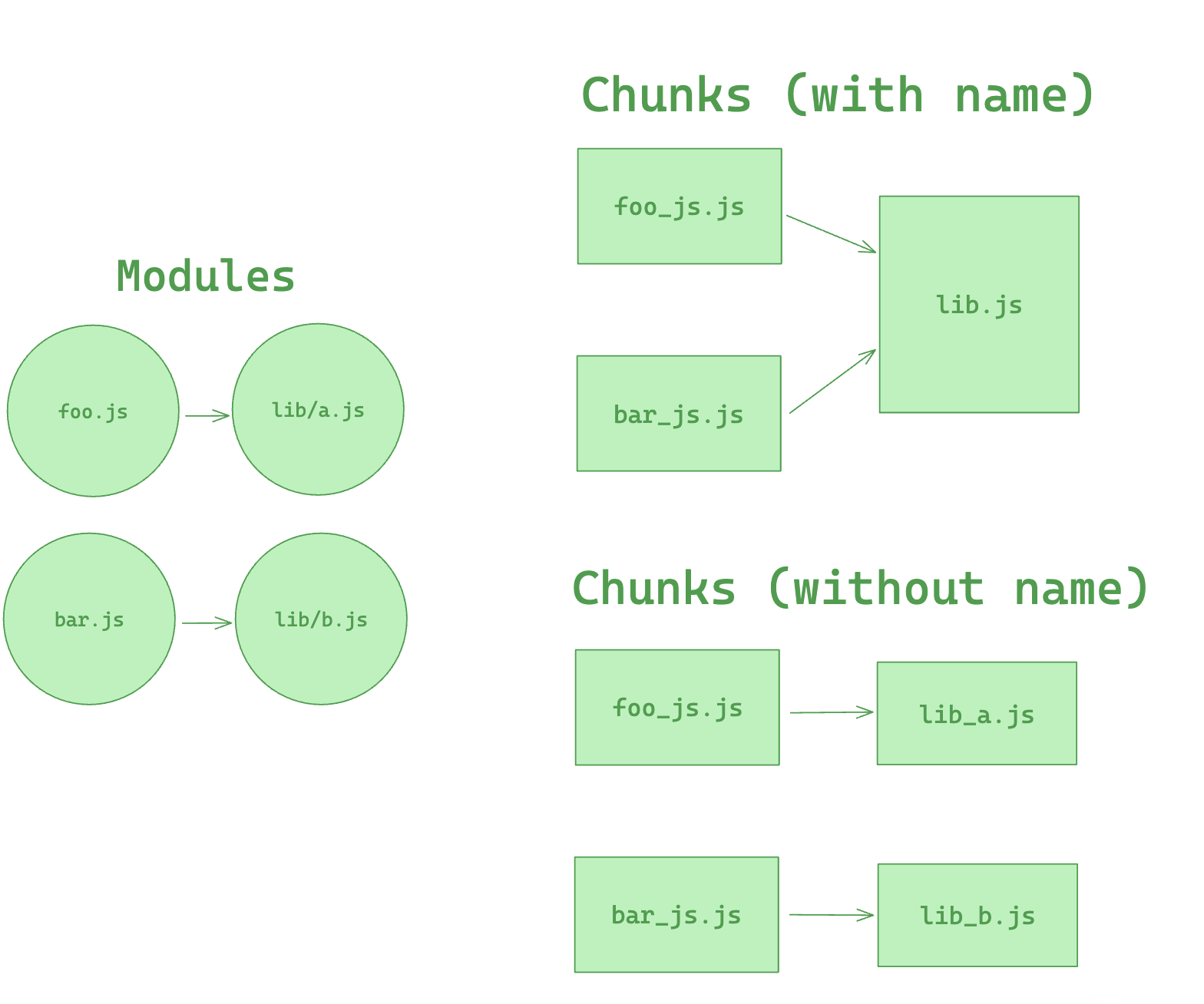
## Prefetching/Preloading modules
Adding these inline directives to your imports allows Rspack to output resource hints that tell the browser that:
- **prefetch**: resource is probably needed for some navigation in the future
- **preload**: resource will also be needed during the current navigation
An example of this is having a `HomePage` component, which renders a `LoginButton` component which then on demand loads a `LoginModal` component after being clicked.
```js title=LoginButton.js
//...
import(/* webpackPrefetch: true */ './path/to/LoginModal.js');
```
This will result in `` being appended in the head of the page, which will instruct the browser to prefetch in idle time the `login-modal-chunk.js` file.
:::info
Rspack will add the prefetch hint once the parent chunk has been loaded.
:::
Preload directive has a bunch of differences compared to prefetch:
- A preloaded chunk starts loading in parallel to the parent chunk. A prefetched chunk starts after the parent chunk finishes loading.
- A preloaded chunk has medium priority and is instantly downloaded. A prefetched chunk is downloaded while the browser is idle.
- A preloaded chunk should be instantly requested by the parent chunk. A prefetched chunk can be used anytime in the future.
- Browser support is different.
An example of this can be having a `Component` which always depends on a big library that should be in a separate chunk.
Let's imagine a component `ChartComponent` which needs a huge `ChartingLibrary`. It displays a `LoadingIndicator` when rendered and instantly does an on demand import of `ChartingLibrary`:
```js title=ChartComponent.js
//...
import(/* webpackPreload: true */ 'ChartingLibrary');
```
When a page which uses the `ChartComponent` is requested, the charting-library-chunk is also requested via ``. Assuming the page-chunk is smaller and finishes faster, the page will be displayed with a `LoadingIndicator`, until the already requested `charting-library-chunk` finishes. This will give a little load time boost since it only needs one round-trip instead of two. Especially in high-latency environments.
:::info
Using webpackPreload incorrectly can actually hurt performance, so be careful when using it.
:::
Sometimes you need to have your own control over preload. For example, preload of any dynamic import can be done via async script. This can be useful in case of streaming server side rendering.
```js
const lazyComp = () =>
import('DynamicComponent').catch((error) => {
// Do something with the error.
// For example, we can retry the request in case of any net error
});
```
If the script loading will fail before Rspack starts loading of that script by itself (Rspack creates a script tag to load its code, if that script is not on a page), that catch handler won't start till chunkLoadTimeout is not passed. This behavior can be unexpected. But it's explainable — Rspack can not throw any error, cause Rspack doesn't know, that script failed. Rspack will add onerror handler to the script right after the error has happen.
To prevent such problem you can add your own onerror handler, which removes the script in case of any error:
```html
```
In that case, errored script will be removed. Rspack will create its own script and any error will be processed without any timeouts.
This page is adapted from [webpack documentation](https://webpack.js.org/guides/code-splitting/) under the [CC BY 4.0](https://creativecommons.org/licenses/by/4.0/), with modifications.
---
url: https://rspack.rs/guide/optimization/tree-shaking.md
---
> For AI agents: the complete documentation index is available at https://rspack.rs/llms.txt, the full documentation bundle is available at https://rspack.rs/llms-full.txt.
# Tree shaking
Rspack supports [tree shaking](https://developer.mozilla.org/en-US/docs/Glossary/Tree_shaking), a term commonly used in the JavaScript ecosystem for removing unused code, also known as "dead code". Dead code occurs when module exports are unused and have no side effects, allowing them to be safely removed to reduce bundle size.
## What is tree shaking
Think of your application as a tree. The source code and libraries you actually use are the green, living leaves. Dead code is like the brown, dead leaves consumed by autumn. To remove the dead leaves, you shake the tree and they fall off.
Rspack doesn't directly remove dead code—it marks unused exports as potential "dead code". Minification tools then recognize and process these markers. If [minimize](https://rspack.rs/config/optimization.md#optimizationminimize) is disabled, you won't see any actual code removal.
:::tip What is dead code
[Dead code](https://en.wikipedia.org/wiki/Dead_code) is code that's no longer executed, typically due to refactoring, optimization, or logical errors. It may be a remnant from previous versions or code that never executes under any condition.
:::
## Prerequisites
To effectively leverage tree shaking, you need to:
- Set Rspack's [mode](https://rspack.rs/config/mode.md) to `production` to enable tree shaking optimizations.
- In production builds, `mode` defaults to `production`.
- Use ES module syntax (`import` and `export`).
- When using compilers such as SWC or Babel, configure them to preserve ES module syntax. For example, set `modules` to `false` in [@babel/preset-env](https://babeljs.io/docs/en/babel-preset-env).
Rspack analyzes your code after loaders have processed it. A loader that converts ES modules to CommonJS might change an export like this:
```diff
- export const unused = 1;
+ exports.unused = 1;
```
This conversion can limit tree shaking. If your bundle still includes unused exports, check your loader or compiler settings to make sure they preserve ES module syntax.
## Configurations
When [mode](https://rspack.rs/config/mode.md) is set to `production`, Rspack enables several tree shaking optimizations:
- [usedExports](https://rspack.rs/config/optimization.md#optimizationusedexports): Detects which module exports are used, enabling removal of unused exports.
- [sideEffects](https://rspack.rs/config/optimization.md#optimizationsideeffects): Analyzes modules for side effects. Modules without side effects can be further optimized through re-exports.
- [providedExports](https://rspack.rs/config/optimization.md#optimizationprovidedexports): Analyzes all exports and tracks their re-export sources.
- [innerGraph](https://rspack.rs/config/optimization.md#optimizationinnergraph): Tracks variable usage to more accurately determine if exports are actually used.
The following examples illustrate how these options work. For clarity, we'll use simplified code to demonstrate code removal.
Let's look at an example with `src/main.js` as the entry point:
```js title='src/main.js'
import { foo } from './util.js';
console.log(foo);
// `bar` is not used
```
```js title='src/util.js'
export const foo = 1;
export const bar = 2;
```
In this example, `bar` from `util.js` is unused. In `production` mode, Rspack enables [usedExports](https://rspack.rs/config/optimization.md#optimizationusedexports) by default, which detects which exports are used. Unused exports like `bar` are removed. The final output looks like this:
```js title='dist/main.js'
const foo = 1;
console.log(foo);
```
## Side effects analysis
In `production` mode, Rspack also analyzes modules for side effects. If all exports from a module are unused and the module has no side effects, the entire module can be removed. Let's modify the previous example:
```diff title='src/main.js'
import { foo } from './util.js';
- console.log(foo);
// `bar` is not used
```
In this case, none of the exports from `util.js` are used, and it’s analyzed as having no side effects, permitting the entire deletion of `util.js`.
You can manually indicate whether a module has side effects via `package.json` or `module.rules`. To do this, enable [optimization.sideEffects](https://rspack.rs/config/optimization.md#optimizationsideeffects).
In `package.json`, you can use `true` or `false` to indicate whether all modules in the package have side effects.
```json title="package.json"
{
"name": "package",
"version": "1.0.0",
"sideEffects": false
}
```
This `package.json` indicates that all modules in this package are side-effect-free.
You can also use glob patterns to specify which modules have side effects. Unmatched modules are automatically treated as side-effect-free. If you manually mark side effects, ensure all unmarked modules truly have no side effects.
```json title="package.json"
{
"name": "package",
"version": "1.0.0",
"sideEffects": ["./src/main.js", "*.css"]
}
```
This `package.json` indicates that only `./src/main.js` and all `.css` files have side effects, while all other modules are side-effect-free.
## Re-export analysis
Re-exports are common in development. However, a module might import many other modules while only needing a few exports. Rspack optimizes this by allowing consumers to access the actual exported modules directly. Consider this re-export example:
```js title='src/main.js'
import { value } from './re-exports.js';
console.log(value);
```
```js title='src/re-exports.js'
export * from './value.js';
export * from './other.js'; // this can be removed if `other.js` does not have any side effects
```
```js title='src/value.js'
export const value = 42;
export const foo = 42; // not used
```
Rspack enables [providedExports](https://rspack.rs/config/optimization.md#optimizationprovidedexports) by default, which analyzes all exports from a re-exporting module and identifies their origins.
If `src/re-exports.js` has no side effects, Rspack can convert the import in `src/main.js` to import directly from `src/value.js`:
```diff title='src/main.js'
- import { value } from './re-exports.js';
+ import { value } from './value.js';
console.log(value);
```
This allows Rspack to completely skip the `src/re-exports.js` module.
By analyzing all re-exports in `src/re-exports.js`, Rspack determines that `foo` from `src/value.js` is unused and removes it from the final output.
## Variable transmission
Sometimes exports are imported but not actually used. For example:
```js title='src/main.js'
import { foo } from './value.js';
function log() {
console.log(foo);
} // `log` is not used
const bar = foo; // `foo` is not used
```
In this scenario, even though the `log` function and the `bar` variable depend on `foo`, neither is used, so `foo` is considered dead code and removed.
When [innerGraph](https://rspack.rs/config/optimization.md#optimizationinnergraph) is enabled (the default in `production` mode), Rspack can track variable usage across modules to achieve precise code optimization.
```js title='src/main.js'
import { value } from './bar.js';
console.log(value);
```
```js title='src/bar.js'
import { foo } from './foo.js';
const bar = foo;
export const value = bar;
```
```js title='src/foo.js'
export const foo = 42;
```
Since `value` is used, the `foo` it depends on is retained.
## Pure annotation
Use the [`/*#__PURE__*/`](https://github.com/javascript-compiler-hints/compiler-notations-spec/blob/main/pure-notation-spec.md) annotation to tell Rspack that a function call is side-effect-free (pure). Place it before function calls to mark them as having no side effects.
When an unused variable's initial value is marked as side-effect-free (pure), it's treated as dead code and removed by the minimizer.
```js
/*#__PURE__*/ double(55);
```
:::tip
- Function arguments aren't marked by the annotation and may need to be marked individually.
- This behavior is enabled when [optimization.innerGraph](https://rspack.rs/config/optimization.md#optimizationinnergraph) is set to true.
:::
## NO\_SIDE\_EFFECTS annotation
`/*#__NO_SIDE_EFFECTS__*/` is a feature that follows the community [JavaScript Compiler Hints Spec](https://github.com/javascript-compiler-hints/compiler-notations-spec/blob/main/no-side-effects-notation-spec.md). Unlike `/*#__PURE__*/` which marks call sites, `/*#__NO_SIDE_EFFECTS__*/` is used to mark **function definitions**, declaring that the function has no side effects when called with arguments.
### Configuration
This feature is currently experimental and controlled by `experiments.pureFunctions`, which is enabled by default in production mode. It also depends on [optimization.sideEffects](https://rspack.rs/config/optimization.md#optimizationsideeffects) being `true` (`sideEffects` is `true` by default in production mode):
```js title="rspack.config.mjs"
export default {
experiments: {
pureFunctions: true,
},
};
```
### Usage
You can place this annotation before function declarations, function expressions, arrow functions, or export statements, check [spec](https://github.com/javascript-compiler-hints/compiler-notations-spec/blob/main/no-side-effects-notation-spec.md) for details:
```js
/*#__NO_SIDE_EFFECTS__*/
function foo() {
console.log('foo');
}
/*#__NO_SIDE_EFFECTS__*/
const bar = () => {
console.log('bar');
};
/*#__NO_SIDE_EFFECTS__*/
export default function baz() {}
/*#__NO_SIDE_EFFECTS__*/
export function baz() {}
```
If a function is marked as side-effect-free and its return value is unused, Rspack can safely remove the call. Compared to `/*#__PURE__*/`, the advantage is that you only need to mark it once at the definition, and all call sites will benefit.
## pureFunctions
`pureFunctions` lets you manually mark top-level identifiers in matched modules as side-effect-free for pure-function-based tree shaking. Each name must resolve to a top-level binding in the module — a function/class/variable declaration, an `import` specifier, or an export alias of one. This is useful for third-party libraries where source code cannot be modified, such as packages in `node_modules`, and for asserting that a particular import is pure on the consumer side.
For configuration details, see [`experiments.pureFunctions`](https://rspack.rs/config/experiments.md#experimentspurefunctions) and [`module.parser.javascript.pureFunctions`](https://rspack.rs/config/module-parser.md#javascriptpurefunctions).
:::warning
This option is experimental and only takes effect when `experiments.pureFunctions` is enabled, which is the default in production mode.
:::
:::note
For default exports configured on the source module, use `default` as the name.
:::
For business source code where modification is possible, it is recommended to use the `/*#__NO_SIDE_EFFECTS__*/` annotation.
### Usage
This option is configured in `module.rules[i].parser`:
```js title="rspack.config.mjs"
export default {
experiments: {
pureFunctions: true,
},
module: {
rules: [
// Mark exports of a third-party library as pure.
{
test: /node_modules\/some-library\/index.js/,
parser: {
pureFunctions: ['isString', 'default'],
},
},
// Or mark the import on the consumer side.
{
test: /src\/styles\.js$/,
parser: {
pureFunctions: ['cva'],
},
},
],
},
};
```
Rspack validates each configured name against the matched module. If a configured name does not appear as a top-level binding in the module, Rspack emits a warning.
---
url: https://rspack.rs/guide/diagnostics/analysis.md
---
> For AI agents: the complete documentation index is available at https://rspack.rs/llms.txt, the full documentation bundle is available at https://rspack.rs/llms-full.txt.
# Bundle analysis
## Rsdoctor's bundle analysis
[Rsdoctor](https://rspack.rs/guide/diagnostics/use-rsdoctor.md) provides the `Bundle Size` module, which is mainly used to analyze the information of the outputs of Rspack, including the size of resources, duplicate packages, and module reference relationships:
- **Bundle Overview**: Displays the total number and size of artifacts, as well as the number and size of each file type. It also shows the duplicate packages and their reference chains.
- **Bundle Analysis Module**: Analyzes the size and code information of the build artifacts' resources (**Assets**) and the included **Modules**. In this module, you can view the **actual code size of modules after packaging** in the Assets, as well as the original code or **packaged code segments** and **module reference relationships**.
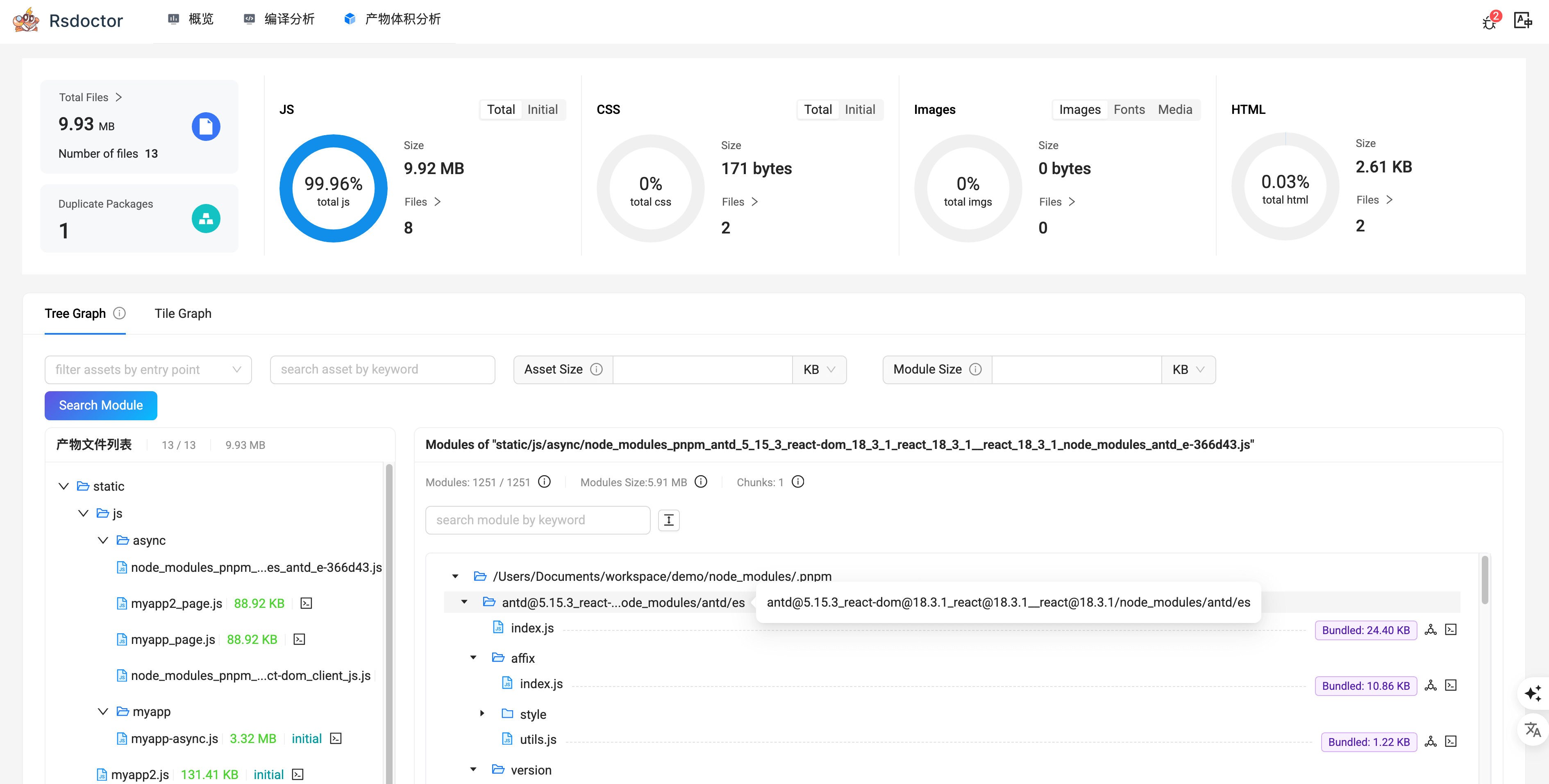
Click on the **"Bundle Size"** option in the navigation bar to view the Bundle analysis report. You can see more details from this page: [Bundle Size](https://rsdoctor.rs/guide/usage/bundle-size)
### Reduce duplicate dependencies
Bundle size optimization is an important part in production build because it directly affects the user experience of online users. In this document, we will introduce some common bundle size optimization methods in Rspack.
It is common for web projects to bundle multiple versions of third-party dependencies. Duplicate dependencies can lead to increased bundle size and slower build speed.
- Detect duplicate dependencies
You can use [Rsdoctor](https://rsdoctor.rs) to detect whether there are duplicate dependencies in the project. Rsdoctor will analyze during the build process, find any duplicate bundled dependencies and display them visually:

For more details, see [Rsdoctor - Duplicate Dependency Problem](https://rsdoctor.rs/blog/topic/duplicate-pkg-problem).
## bundle-stats and statoscope
You can also generate a `stats.json` file for further analysis with other bundle analysis tools like [bundle-stats](https://github.com/relative-ci/bundle-stats) or [statoscope](https://github.com/statoscope/statoscope):
```sh
$ rspack build --json stats.json
```
---
url: https://rspack.rs/guide/diagnostics/profile.md
---
> For AI agents: the complete documentation index is available at https://rspack.rs/llms.txt, the full documentation bundle is available at https://rspack.rs/llms-full.txt.
# Build performance profiling
This chapter introduces some common performance bottlenecks and performance profile methods for Rspack.
For Rust data-structure snapshots and comparisons across HMR updates, see [Memory analysis](https://rspack.rs/guide/diagnostics/memory.md).
## Analysis with Rsdoctor
[Rsdoctor](https://rsdoctor.rs/) is a build analyzer that can visually display the build process, such as compilation time, code changes before and after compilation, module reference relationships, duplicate modules, etc.
Please refer to [Use Rsdoctor](https://rspack.rs/guide/diagnostics/use-rsdoctor.md) for more information.
## Rspack profile
The Rspack CLI supports the use of the `RSPACK_PROFILE` environment variable for build performance profile.
```sh
RSPACK_PROFILE=ALL rspack build
```
This command will generate a `.rspack-profile-${timestamp}-${pid}` folder. By default, it contains the `rspack.log` file, which is generated by Rspack based on [tracing](https://github.com/tokio-rs/tracing) and records build timing information as JSON Lines.
`@rspack-debug/core` is a diagnostic variant of `@rspack/core` that includes extra debugging and tracing capabilities. If you use `@rspack-debug/core` and set `RSPACK_TRACE_LAYER=perfetto`, the profile directory will contain `rspack.pftrace`, which can be viewed using [ui.perfetto.dev](https://ui.perfetto.dev/).
> See [Tracing](https://rspack.rs/contribute/development/tracing.md) for more information.
## Performance bottlenecks
Although Rspack itself provides good build performance, the use of some JavaScript loaders and plugins in Rspack can slow down the build performance, especially on large projects.
Some of these issues can be resolved with Rspack's built-in high performance alternatives, while others can be identified and optimized using performance analysis tools.
Here are some common cases:
### babel-loader
[babel-loader](https://github.com/babel/babel-loader) compiles JavaScript and TypeScript code using Babel. You can replace Babel with the faster SWC. Rspack comes with a built-in [builtin:swc-loader](https://rspack.rs/guide/builtin-loaders/swc-loader.md), which is the Rust version of `swc-loader` and is intended to provide better performance.
If you need to use some Babel plugins for custom transformations, configure babel-loader with [rules\[\].include](https://rspack.rs/config/module-rules.md#rulesinclude) to match as few files as possible to reduce the Babel compilation overhead.
### postcss-loader
[postcss-loader](https://github.com/postcss/postcss-loader) compiles CSS code based on PostCSS, which is often used with PostCSS plugins to downgrade CSS syntax, add vendor prefixes, etc. You can replace PostCSS with the faster Lightning CSS by using Rspack's built-in [builtin:lightningcss-loader](https://rspack.rs/guide/builtin-loaders/lightningcss-loader.md).
### terser-webpack-plugin
[terser-webpack-plugin](https://github.com/webpack/terser-webpack-plugin) minifies JavaScript code based on Terser. You can replace Terser with the faster SWC minimizer by using Rspack's built-in [SwcJsMinimizerRspackPlugin](https://rspack.rs/plugins/swc-js-minimizer-rspack-plugin.md).
### css-minimizer-webpack-plugin
[css-minimizer-webpack-plugin](https://github.com/webpack/css-minimizer-webpack-plugin) minifies CSS code based on tools like cssnano. You can replace cssnano with the faster Lightning CSS minimizer by using Rspack's built-in [LightningCssMinimizerRspackPlugin](https://rspack.rs/plugins/lightning-css-minimizer-rspack-plugin.md).
### less-loader
[less-loader](https://github.com/webpack/less-loader) compiles `.less` files based on Less. Since Less currently lacks an officially implemented high performance alternative, it is recommended to use [sass-loader](https://github.com/webpack/sass-loader) and [sass-embedded](https://www.npmjs.com/package/sass-embedded) instead. `sass-embedded` is a JavaScript wrapper for Sass's native Dart executable that provides excellent performance.
### html-webpack-plugin
[html-webpack-plugin](https://github.com/jantimon/html-webpack-plugin) performs poorly when generating large numbers of HTML files. The [HtmlRspackPlugin](https://rspack.rs/plugins/html-rspack-plugin.md) implemented in Rust by Rspack can provide better performance.
### ts-checker-rspack-plugin
When using [ts-checker-rspack-plugin](https://github.com/rspack-contrib/ts-checker-rspack-plugin), TypeScript 7 or later is recommended to enable the native type checker and improve type-checking performance on large projects. See the [plugin README](https://github.com/rspack-contrib/ts-checker-rspack-plugin#typescript-7-support) for details.
## Blocking thread pool size
Rspack internally uses a dedicated thread pool to handle blocking operations such as file system reads and writes, preventing the main thread from being blocked.
By default, the pool size is set to `4`, matching Node.js's [libuv](https://docs.libuv.org/en/v1.x/threadpool.html) behavior, which provides stable performance across most development and CI environments.
If your build environment uses high-speed storage, you can adjust the thread count via the `RSPACK_BLOCKING_THREADS` environment variable to improve parallelism and potentially reduce build time, for example:
```bash
# Need to install cross-env package to set environment variables
cross-env RSPACK_BLOCKING_THREADS=8 rspack build
```
After setting the variable, observe the build time to find the most suitable configuration.
On slower or high-latency file systems, it's recommended to keep the default value or even lower it to avoid thread contention.
## Working thread pool size
Rspack internally uses a Tokio thread pool and Rayon thread pool to handle CPU bound tasks (Tokio for async tasks and Rayon for sync tasks). By default, Tokio and Rayon automatically determines the number of worker threads based on the number of CPU cores available.
If it consumes too much CPU resources during the build process, you can limit the number of worker threads by setting the `TOKIO_WORKER_THREADS` and `RAYON_NUM_THREADS` environment variable, for example:
```bash
# Need to install cross-env package to set environment variables
cross-env TOKIO_WORKER_THREADS=4 RAYON_NUM_THREADS=4 rspack build
```
Be aware that setting this value too low may lead to longer build times. After setting the variable, observe the build time to find the most suitable configuration.
---
url: https://rspack.rs/guide/diagnostics/memory.md
---
> For AI agents: the complete documentation index is available at https://rspack.rs/llms.txt, the full documentation bundle is available at https://rspack.rs/llms-full.txt.
# Memory analysis
Rspack supports capturing memory snapshots during builds and HMR updates. When you report a memory issue, include these files to help maintainers investigate.
## Enable profiling
[Added in v2.3.0](https://github.com/web-infra-dev/rspack/releases/tag/v2.3.0)
Use a debug or profiling package at this version or later (standard release packages do not include allocative support). Snapshot collection is off by default. To enable it, set `RSPACK_ALLOCATIVE_DIR` to an output directory when running your project.
### Direct Rspack users
If your project depends on `@rspack/core` directly, replace it with the debug package at the same version. For example, change `2.3.0` to `npm:@rspack-debug/core@2.3.0`:
```diff title="package.json"
{
"devDependencies": {
- "@rspack/core": "2.3.0"
+ "@rspack/core": "npm:@rspack-debug/core@2.3.0"
}
}
```
Keep the dependency in its original section (`dependencies` or `devDependencies`), then run `pnpm install`.
### Using Rspack through higher-level tools
If your project uses Rspack indirectly through a higher-level tool such as Rsbuild, add a package manager override for `@rspack/core`. For pnpm, add this configuration to `package.json`:
```json title="package.json"
{
"pnpm": {
"overrides": {
"@rspack/core": "npm:@rspack-debug/core@2.3.0"
},
"peerDependencyRules": {
"allowAny": ["@rspack/*"]
}
}
}
```
Use the same version as the tool's resolved `@rspack/core` dependency (`2.3.0` in this example), then run `pnpm install`. See [Debugging](https://rspack.rs/contribute/development/debugging.md) for more about diagnostic package overrides.
For either approach, you can use a profiling build instead of the debug package. Set `RSPACK_ALLOCATIVE_DIR` when running your project's original build or dev command. Leave it unset to skip snapshot collection. If no suitable package is available, see [Build a local binding](https://rspack.rs/contribute/development/memory.md#build-a-local-binding) to build from source.
## Capture memory snapshots
### Capture a build
Run the project's original build command with an absolute output directory:
```sh
RSPACK_ALLOCATIVE_DIR=/absolute/path/profiles/build-1 pnpm exec rspack build
```
Verify that the build, its configuration, and its plugins all load the intended diagnostic package. For tools that integrate Rspack, keep the tool's normal build command and use a compatible diagnostic package override.
After the initial build completes, the output directory contains:
```text
build-1/
0-build.allocative
0-build.counts.json
0-build.metadata.json
0-build.warnings.txt
```
Use a fresh directory for each process. Snapshot numbering is shared across compilers within a process and resets in a new process. Reusing a directory between processes can overwrite files.
### Capture HMR updates
Set the same output variable when starting the dev server:
```sh
RSPACK_ALLOCATIVE_DIR=/absolute/path/profiles/hmr-1 pnpm exec rspack dev
```
Edit a source file and wait for each rebuild to finish. A single compiler with three rebuilds produces four byte snapshots:
```text
0-build.allocative
1-rebuild.allocative
2-rebuild.allocative
3-rebuild.allocative
```
Each snapshot also has matching counts, metadata, and warnings files. Watch-mode builds using the same package can also collect snapshots via `RSPACK_ALLOCATIVE_DIR`.
Keep the project's build mode and sourcemap settings while reproducing the issue, and record the edits made for each HMR update.
## Attach data to an issue report
After the build or the intended HMR updates have completed, compress the entire output directory and attach the archive to your issue report. Include all four file types for every snapshot:
| File | Contents |
| ----------------- | ----------------------------------------------------------- |
| `*.allocative` | The Rust data-structure memory snapshot. |
| `*.counts.json` | Module and dependency entry counts. |
| `*.metadata.json` | Snapshot identity, memory totals, and collection metadata. |
| `*.warnings.txt` | Coverage and accounting warnings; include it even if empty. |
For example, archive the build capture directory:
```sh
tar -czf rspack-memory-build-1.tar.gz -C /absolute/path/profiles build-1
```
For an HMR issue, archive the complete sequence from the initial build through the last relevant rebuild, including all matching files for each snapshot. Keep the original filenames so maintainers can match the snapshots and sidecars.
Include this context in the issue report:
- The Rspack and diagnostic package versions, Node.js version, and operating system.
- The command, configuration, build mode, and sourcemap setting used for the capture.
- A reproduction project or reproduction steps; for HMR, include the edits and their order.
- The observed memory issue, when it occurs, and the build logs. If no snapshots were produced, report that along with the command and logs.
:::tip
For a deeper look at Rspack's memory usage, see the [memory analysis contribution guide](https://rspack.rs/contribute/development/memory.md). It explains how to capture and analyze memory snapshots, along with how collection works and its limitations.
:::
---
url: https://rspack.rs/guide/diagnostics/runtime-issues.md
---
> For AI agents: the complete documentation index is available at https://rspack.rs/llms.txt, the full documentation bundle is available at https://rspack.rs/llms-full.txt.
# Runtime issues
This page explains how to diagnose and handle runtime issues in applications built with Rspack.
## Chunk loading failures
An error such as `ChunkLoadError` means an async chunk could not be loaded, but does not identify the cause. Open the browser's Network panel and inspect the failed request before choosing a fix:
- **Incorrect URL:** Check whether the requested hostname and path match where the assets are served. If they do not, review [`output.publicPath`](https://rspack.rs/guide/features/asset-base-path.md).
- **Missing file or incorrect response:** For a 404 response, check whether the file exists on the server or CDN. If the response contains HTML instead of the requested JavaScript or CSS, check the server's routing. For old files removed during deployment, see [the deployment example below](#chunkloaderror-after-deployment).
- **Network failure:** For a timeout, connection failure, or server error, check the network connection and whether the server or CDN is available.
- **Browser extension blocking the request:** Temporarily disable ad blockers or other request-blocking extensions and try again to check whether they caused the failure.
### `ChunkLoadError` with an HTTP 200 response
An HTTP 200 response in the Network panel does not always mean that the chunk loaded successfully. The server may have returned HTML or the wrong JavaScript file, or the script may have failed to run.
Check the response and any script errors:
1. Open the request in the Network panel and check its response. It should contain the chunk from the current application version, rather than HTML, an empty response, or JavaScript from another version.
2. Look for earlier JavaScript errors in the Console. A syntax or execution error may prevent even the correct file from loading successfully.
By default, browsers load JavaScript chunks through `
```
```js title="rspack.config.mjs"
export default {
externals: {
dayjs: 'dayjs',
},
};
```
In this case, the `dayjs` module is removed from the bundle and resolved from the external environment at runtime, so code like this still works:
```js
import dayjs from 'dayjs';
console.log(dayjs().format('YYYY-MM-DD'));
```
In the configuration above, the key `dayjs` under `externals` matches the module specifier in `import dayjs from 'dayjs'`, meaning that module should not be bundled.
The value `dayjs` is then used to access the global variable at runtime. In this basic configuration, the default [externalsType](#externalstype) is `var`, which means Rspack reads it from the global scope. In a browser, this usually means accessing `window.dayjs`.
### String
In the example above, the value of `externals` uses the string form. The meaning of that string depends on [externalsType](#externalstype).
In general, the string can represent:
- a **global variable name** for types such as [`'var'`](#externalstypevar), [`'window'`](#externalstypewindow), [`'global'`](#externalstypeglobal), and [`'this'`](#externalstypethis)
- or a **module name** for types such as [`'module'`](#externalstypemodule) and [`'commonjs'`](#externalstypecommonjs)
#### Shorthand syntax
If you only need to declare one external, you can use the shorter form:
```js title="rspack.config.mjs"
export default {
externals: 'lodash', // equivalent to externals: { lodash: 'lodash' }
};
```
#### Matching rules
String externals use **exact matching**.
For example, the configuration below matches `react-dom`, but it does not match subpath imports such as `react-dom/client`:
```js title="rspack.config.mjs"
export default {
externals: {
'react-dom': 'react-dom',
},
externalsType: 'module-import',
};
```
If you want those subpath imports to be externalized as well, list them explicitly:
```js title="rspack.config.mjs"
export default {
externals: {
'react-dom': 'react-dom',
'react-dom/client': 'react-dom/client',
},
externalsType: 'module-import',
};
```
If you need to match a family of similar import specifiers, use a [regular expression](#regexp) instead.
#### Specifying the external type
You can also specify the external type explicitly with the `${externalsType} ${libraryName}` syntax. This overrides the default value from [externalsType](#externalstype).
For example, if the external dependency is provided as an ES module:
```js title="rspack.config.mjs"
export default {
externals: {
react: 'module-import react',
},
};
```
### string\[]\{#string-array}
```js title="rspack.config.mjs"
export default {
externals: {
subtract: ['./math', 'subtract'],
},
};
```
`subtract: ['./math', 'subtract']` allows you select part of a module, where `./math` is the module and your bundle only requires the subset under the `subtract` variable.
When the `externalsType` is `commonjs`, this example would translate to `require('./math').subtract;` while when the `externalsType` is `window`, this example would translate to `window["./math"]["subtract"];`
Similar to the [string syntax](#string), you can specify the external library type with the `${externalsType} ${libraryName}` syntax, in the first item of the array, for example:
```js title="rspack.config.mjs"
export default {
externals: {
subtract: ['commonjs ./math', 'subtract'],
},
};
```
### object
:::warning
An object with `{ root, commonjs, commonjs2, amd, ... }` is only allowed for [`library.type: 'umd'`](https://rspack.rs/config/output.md#outputlibrarytype) and [`externalsType: 'umd'`](#externalstype). It's not allowed for other library targets.
:::
```js title="rspack.config.mjs"
export default {
externals: {
// When `library.type: 'umd'` and `externalsType: 'umd'`, the following format must be strictly followed:
lodash: {
root: '_', // indicates global variable
commonjs: 'lodash',
commonjs2: 'lodash',
amd: 'lodash',
},
},
};
```
This syntax is used to describe all the possible ways that an external library can be made available. `lodash` here is available as `lodash` under AMD and CommonJS module systems but available as `_` in a global variable form. `subtract` here is available via the property `subtract` under the global `math` object (e.g. `window['math']['subtract']`).
### Function
**Type:**
```ts
type ExternalFunction = (
data: ExternalItemFunctionData,
callback: (
error?: Error | null,
result?: ExternalItemValue,
externalsType?: ExternalsType,
) => void,
) => ExternalItemValue | void | Promise;
```
Use a function when the decision to externalize a dependency depends on its request or other module information. The function can return a result directly, return a Promise, or call a callback.
For example, this configuration keeps `react` and its subpaths as ES module imports:
```js title="rspack.config.mjs"
export default {
output: {
module: true,
},
externalsType: 'module',
externals: ({ request }) => {
if (request === 'react' || request?.startsWith('react/')) {
return request;
}
},
};
```
The consumer must be able to resolve these imports, for example through another bundler or a browser import map.
For synchronous return values, declare exactly one parameter, as in `({ request }) => ...`. Rspack uses the function's parameter count to distinguish this form from callback usage. For asynchronous work, use an `async` function or return a Promise.
#### Request data
The first argument contains information about the dependency:
- `request`: The module request as written in the source code, such as `react` or `./utils.js`, before it is resolved to a file path.
- `context`: The directory from which the request is resolved.
- `dependencyType`: The dependency category, such as `esm` or `commonjs`.
- `contextInfo.issuer`: The path of the module that made the request.
- `contextInfo.issuerLayer`: The layer of the requesting module, if set.
- `getResolve`: Creates a resolver using the current resolve options. See [Resolving requests](#resolving-requests).
#### Results
Return values, Promise results, and callback results have the same meaning:
- **String, string array, or object:** Externalize the request using the corresponding value format: [string](#string), [string array](#string-array), or [object](#object).
- **`true`:** Externalize the request using its original name and [`externalsType`](#externalstype).
- **`false`:** Stop checking the remaining rules in this `externals` configuration without externalizing the request. Other `ExternalsPlugin` instances can still externalize it.
- **`undefined`:** Continue checking the next rule. For callbacks, use `callback()`.
If no rule externalizes a request, Rspack continues normal module processing. To override `externalsType` for a single result, add a type prefix such as `'window _'`, or pass the type as the callback's third argument.
#### Callback usage
The second argument is a callback. Call `callback(error)` on failure, `callback(null, result, externalsType?)` to supply a result, or `callback()` to continue checking other rules. When using this form, call the callback on every path instead of returning a result.
The ESM example above can also be written using a callback:
```js title="rspack.config.mjs"
export default {
output: {
module: true,
},
externalsType: 'module',
externals: ({ request }, callback) => {
if (request === 'react' || request?.startsWith('react/')) {
callback(null, request);
return;
}
callback();
},
};
```
#### Resolving requests
Use `getResolve()` when the decision to externalize a dependency depends on its resolved path or package metadata. For example, inside an async external function that receives `{ context, request, getResolve }`:
```js
const resolve = getResolve();
const resolvedPath = await resolve(context, request);
```
Pass [resolve options](https://rspack.rs/config/resolve.md) to `getResolve(options)` to customize the resolver. The returned function also accepts a callback: `resolve(context, request, (error, resolvedPath, resolveData) => { ... })`.
A successful resolution returns a path. If the request is ignored, for example by an alias set to `false`, the Promise resolves to `undefined` and the callback receives `false` as its second argument. A resolution error rejects the Promise or is passed to the callback's first argument.
In callback mode, the optional third argument contains resolution details. Its `descriptionFileData` field contains the parsed `package.json` object when available, so you can read fields such as `name`, `version`, or `type` directly without calling `JSON.parse()`.
### RegExp
You can also use a regular expression to match modules that should be externalized. Any module specifier that matches the pattern will be excluded from the output bundle.
```js title="rspack.config.mjs"
export default {
externals: /react-dom/i,
};
```
In this example, any module specifier matching `react-dom` will be externalized, including `react-dom` and `react-dom/client`.
### Combining syntaxes
Sometimes you may want to use a combination of the above syntaxes. This can be done in the following manner:
```js title="rspack.config.mjs"
export default {
externals: [
{
// String
react: 'react',
// Object
lodash: {
commonjs: 'lodash',
amd: 'lodash',
root: '_', // indicates global variable
},
// [string]
subtract: ['./math', 'subtract'],
},
// Function
function ({ context, request }, callback) {
if (/^yourregex$/.test(request)) {
return callback(null, 'commonjs ' + request);
}
callback();
},
// Regex
/^(jquery|\$)$/i,
],
};
```
:::warning
[Default type](#externalstype) will be used if you specify `externals` without a type e.g. `externals: { react: 'react' }` instead of `externals: { react: 'commonjs-module react' }`.
:::
## externalsType
- **Type:** `string`
`externalsType` determines how Rspack loads external dependencies by default. When using the `'amd'`, `'umd'`, `'system'`, or `'jsonp'` type, [`output.library.type`](https://rspack.rs/config/output.md#outputlibrarytype) must be set to the same value. For example, only an `'amd'` library can use an `'amd'` external.
Set `externalsType` explicitly when an external dependency needs a loading format different from the inferred value.
### Default value
The default value is inferred in this order:
- If [`output.library`](https://rspack.rs/config/output.md#outputlibrary) is configured with a type other than `'modern-module'`, `externalsType` defaults to [`output.library.type`](https://rspack.rs/config/output.md#outputlibrarytype).
- Otherwise, if [`output.module`](https://rspack.rs/config/output.md#outputmodule) is `true`, it defaults to `'module-import'`.
- Otherwise, it defaults to `'var'`.
For backward compatibility, [`output.library.type: 'modern-module'`](https://rspack.rs/config/output.md#outputlibrarytype) currently skips the first rule and falls through to the `output.module` rule. Set `externalsType: 'modern-module'` explicitly to opt in to modern module externals.
### Supported values
The following types are supported:
- `'amd'`
- `'amd-require'`
- `'assign'` - same as `'var'`
- [`'commonjs'`](#externalstypecommonjs)
- `'commonjs2'`
- `'commonjs-module'`
- `'commonjs-static'`
- [`'global'`](#externalstypeglobal)
- [`'module'`](#externalstypemodule)
- [`'import'`](#externalstypeimport) - uses `import()` to load a native ECMAScript module (async module)
- [`'module-import'`](#externalstypemodule-import)
- [`'modern-module'`](#externalstypemodern-module)
- [`'commonjs-import'`](#externalstypecommonjs-import)
- `'jsonp'`
- [`'node-commonjs'`](#externalstypenode-commonjs)
- [`'promise'`](#externalstypepromise) - same as `'var'` but awaits the result (async module)
- [`'self'`](#externalstypeself)
- `'system'`
- [`'script'`](#externalstypescript)
- [`'this'`](#externalstypethis)
- `'umd'`
- `'umd2'`
- [`'var'`](#externalstypevar)
- [`'window'`](#externalstypewindow)
```js title="rspack.config.mjs"
export default {
externalsType: 'promise',
};
```
### externalsType.commonjs
Specify the default type of externals as `'commonjs'`. Rspack will generate code like `const X = require('...')` for externals used in a module.
**Example**
```js
import fs from 'fs-extra';
```
```js title="rspack.config.mjs"
export default {
externalsType: 'commonjs',
externals: {
'fs-extra': 'fs-extra',
},
};
```
Will generate into something like:
```js
const fs = require('fs-extra');
```
Note that there will be a `require()` in the output bundle.
### externalsType.global
Specify the default type of externals as `'global'`. Rspack will read the external as a global variable on the [`globalObject`](https://rspack.rs/config/output.md#outputglobalobject).
**Example**
```js
import jq from 'jquery';
jq('.my-element').animate(/* ... */);
```
```js title="rspack.config.mjs"
export default {
externalsType: 'global',
externals: {
jquery: '$',
},
output: {
globalObject: 'global',
},
};
```
Will generate into something like
```js
const jq = global['$'];
jq('.my-element').animate(/* ... */);
```
### externalsType.module
Specify the default type of externals as `'module'`. Rspack will generate code like `import * as X from '...'` for externals used in a module.
Make sure to enable [`output.module`](https://rspack.rs/config/output.md#outputmodule).
**Example**
```js
import jq from 'jquery';
jq('.my-element').animate(/* ... */);
```
```js title="rspack.config.mjs"
export default {
output: {
module: true,
},
externalsType: 'module',
externals: {
jquery: 'jquery',
},
};
```
Will generate into something like
```js
import * as __rspack_external_jquery from 'jquery';
const jq = __rspack_external_jquery['default'];
jq('.my-element').animate(/* ... */);
```
Note that there will be an `import` statement in the output bundle.
### externalsType.import
Specify the default type of externals as `'import'`. Rspack will generate code like `import('...')` for externals used in a module.
**Example**
```js
async function foo() {
const jq = await import('jquery');
jq('.my-element').animate(/* ... */);
}
```
```js title="rspack.config.mjs"
export default {
externalsType: 'import',
externals: {
jquery: 'jquery',
},
};
```
Will generate into something like
```js
var __webpack_modules__ = {
jquery: (module) => {
module.exports = import('jquery');
},
};
// Rspack runtime...
async function foo() {
const jq = await Promise.resolve(/* import() */).then(
__webpack_require__.bind(__webpack_require__, 'jquery'),
);
jq('.my-element').animate(/* ... */);
}
```
Note that there will be an `import()` statement in the output bundle.
### externalsType\['module-import']
Specify the default type of externals as `'module-import'`. This combines [`'module'`](#externalstypemodule) and [`'import'`](#externalstypeimport). Rspack will automatically detect the type of import syntax, setting it to `'module'` for static imports and `'import'` for dynamic imports.
**Example**
```js
import { attempt } from 'lodash';
async function foo() {
const jq = await import('jquery');
attempt(() => jq('.my-element').animate(/* ... */));
}
```
```js title="rspack.config.mjs"
export default {
externalsType: 'module-import',
externals: {
lodash: 'lodash',
jquery: 'jquery',
},
};
```
Will generate into something like
```js
import * as __rspack_external_lodash from 'lodash';
const lodash = __rspack_external_jquery;
var __webpack_modules__ = {
jquery: (module) => {
module.exports = import('jquery');
},
};
// Rspack runtime...
async function foo() {
const jq = await Promise.resolve(/* import() */).then(
__webpack_require__.bind(__webpack_require__, 'jquery'),
);
(0, lodash.attempt)(() => jq('.my-element').animate(/* ... */));
}
```
Note that there will be an `import` or `import()` statement in the output bundle.
When a module is not imported via `import` or `import()`, Rspack will use `"module"` externals type as fallback. If you want to use a different type of externals as fallback, you can specify it with a function in the `externals` option. For example:
```js title="rspack.config.mjs"
export default {
externalsType: 'module-import',
externals: [
function ({ request, dependencyType }, callback) {
if (dependencyType === 'commonjs') {
return callback(null, `node-commonjs ${request}`);
}
callback();
},
],
};
```
### externalsType\['modern-module']
Specify the default type of externals as `'modern-module'`.
For compatibility, Rspack does not enable this automatically when [`output.library.type`](https://rspack.rs/config/output.md#outputlibrarytype) is `'modern-module'` yet. Configure `externalsType: 'modern-module'` explicitly to opt in. This will become the default for `modern-module` libraries in the next major version.
For static ESM imports, Rspack renders the external like [`'module'`](#externalstypemodule), using a static `import` statement. For dynamic `import()`, Rspack renders the external like [`'module-import'`](#externalstypemodule-import), using `import()`.
For CommonJS `require()`, Rspack chooses the CommonJS external variant from the target. Node-like targets render the external like [`'node-commonjs'`](#externalstypenode-commonjs) and create a `require` function with `createRequire` in the generated ESM output. Other targets render it like [`'commonjs'`](#externalstypecommonjs), preserving a bare `require()` call.
**Example**
```js title="src/index.js"
import { readFile } from 'node:fs/promises';
const path = require('node:path');
export async function loadConfig(file) {
const os = await import('node:os');
const content = await readFile(file, 'utf-8');
return {
content,
dirname: path.dirname(file),
platform: os.platform(),
};
}
```
```js title="rspack.config.mjs"
export default {
target: 'node',
output: {
library: {
type: 'modern-module',
},
},
externalsType: 'modern-module',
externals: ['node:fs/promises', 'node:path', 'node:os'],
};
```
Because this example targets Node.js, the generated ESM output keeps the static import as an `import` statement, keeps the dynamic import as `import()`, and renders the `require()` external through `createRequire`:
```js
import { createRequire as __rspack_createRequire } from 'node:module';
import { readFile } from 'node:fs/promises';
const __rspack_createRequire_require = __rspack_createRequire(import.meta.url);
const path = __rspack_createRequire_require('node:path');
async function loadConfig(file) {
const os = await import('node:os');
// ...
}
export { loadConfig };
```
### externalsType\['commonjs-import']
Specify the default type of externals as `'commonjs-import'`. This combines [`'commonjs'`](#externalstypecommonjs) and [`'import'`](#externalstypeimport). Rspack will automatically detect the type of import syntax, setting dynamic import to `'import'` and leaving others to `'commonjs'`.
This is useful when building a Node.js application that target Node.js version higher than `13.2.0`, which supports both [`import()` expressions](https://nodejs.org/api/esm.html#import-expressions) and `require()`.
:::note
`commonjs-import` type is only available of Rspack, and not applicable for webpack.
:::
**Example**
```js
import { attempt } from 'lodash';
async function foo() {
const jq = await import('jquery');
attempt(() => jq('.my-element').animate(/* ... */));
}
```
```js title="rspack.config.mjs"
export default {
externalsType: 'commonjs-import',
externals: {
lodash: 'lodash',
jquery: 'jquery',
},
};
```
Will generate into something like
```js
var __webpack_modules__ = {
lodash: function (module) {
module.exports = require('lodash');
},
jquery: function (module) {
module.exports = import('jquery');
},
};
// Rspack runtime...
async function foo() {
const jq = await Promise.resolve(/* import() */).then(
__webpack_require__.bind(__webpack_require__, 'jquery'),
);
(0, lodash__rspack_import_0__.attempt)(() =>
jq('.my-element').animate(/* ... */),
);
}
```
Note that there will be an `import()` statement in the output bundle.
### externalsType\['node-commonjs']
Specify the default type of externals as `'node-commonjs'`. Rspack will import [`createRequire`](https://nodejs.org/api/module.html#module_module_createrequire_filename) from `'module'` to construct a require function for loading externals used in a module.
**Example**
```js
import jq from 'jquery';
jq('.my-element').animate(/* ... */);
```
```js title="rspack.config.mjs"
export default {
externalsType: 'node-commonjs',
externals: {
jquery: 'jquery',
},
};
```
Will generate into something like
```js
import { createRequire } from 'node:module';
const jq = createRequire(import.meta.url)('jquery');
jq('.my-element').animate(/* ... */);
```
Note that there will be an `import` statement in the output bundle.
### externalsType.promise
Specify the default type of externals as `'promise'`. Rspack will read the external as a global variable (similar to [`'var'`](#externalstypepromise)) and `await` for it.
**Example**
```js
import jq from 'jquery';
jq('.my-element').animate(/* ... */);
```
```js title="rspack.config.mjs"
export default {
externalsType: 'promise',
externals: {
jquery: '$',
},
};
```
Will generate into something like
```js
const jq = await $;
jq('.my-element').animate(/* ... */);
```
### externalsType.self
Specify the default type of externals as `'self'`. Rspack will read the external as a global variable on the `self` object.
**Example**
```js
import jq from 'jquery';
jq('.my-element').animate(/* ... */);
```
```js title="rspack.config.mjs"
export default {
externalsType: 'self',
externals: {
jquery: '$',
},
};
```
Will generate into something like
```js
const jq = self['$'];
jq('.my-element').animate(/* ... */);
```
### externalsType.script
Specify the default type of externals as `'script'`. Rspack will load the external as a script exposing predefined global variables with HTML `
```
## output.cssChunkFilename
- **Type:** `string | ((pathData: PathData, assetInfo?: AssetInfo) => string)`
- **Default:** Determined by [`output.chunkFilename`](https://rspack.rs/config/output.md#outputchunkfilename) when it is not a function, otherwise `'[id].css'`.
This option determines the name of non-initial CSS output files on disk. See [`output.filename`](https://rspack.rs/config/output.md#outputfilename) option for details on the possible values.
For a string `output.chunkFilename`, Rspack replaces its `.js`, `.mjs`, or `.cjs` extension with `.css`, preserving any query string. For a function, the default is `'[id].css'`; the function is not called to derive the CSS filename.
You **must not** specify an absolute path here. However, feel free to include folders separated by `'/'`. This specified path combines with the [`output.path`](#outputpath) value to pinpoint the location on the disk.
## output.cssFilename
- **Type:** `string | ((pathData: PathData, assetInfo?: AssetInfo) => string)`
- **Default:** Derived from [`output.filename`](#outputfilename) when it is a string, otherwise `'[id].css'`.
This option determines the name of CSS output files on disk. See [`output.filename`](https://rspack.rs/config/output.md#outputfilename) option for details on the possible values.
For a string `output.filename`, Rspack replaces its `.js`, `.mjs`, or `.cjs` extension with `.css`, preserving any query string. If none of these extensions is present, the string is unchanged.
| `output.filename` | Default `output.cssFilename` |
| ------------------------ | ---------------------------- |
| `'scripts/[name].js'` | `'scripts/[name].css'` |
| `'[name].mjs?version=1'` | `'[name].css?version=1'` |
| A function | `'[id].css'` |
When using a function for JavaScript filenames, configure CSS filenames separately if you need named CSS assets:
```js title="rspack.config.mjs"
export default {
output: {
filename: () => 'scripts/[name].js',
cssFilename: 'styles/[name].css',
},
};
```
You **must not** specify an absolute path here. However, feel free to include folders separated by `'/'`. This specified path combines with the [`output.path`](#outputpath) value to pinpoint the location on the disk.
## output.devtoolFallbackModuleFilenameTemplate
- **Type:**
```ts
type DevtoolFallbackModuleFilenameTemplate =
string | ((context: ModuleFilenameTemplateContext) => string);
```
- **Default:** `undefined`
A fallback is used when the template string or function above yields duplicates.
See [`output.devtoolModuleFilenameTemplate`](https://rspack.rs/config/output.md#outputdevtoolmodulefilenametemplate).
## output.devtoolModuleFilenameTemplate
- **Type:**
```ts
type DevtoolModuleFilenameTemplate =
string | ((context: ModuleFilenameTemplateContext) => string);
```
- **Default:** `webpack://[namespace]/[resource-path]?[loaders]'`
This option is only used when [`devtool`](https://rspack.rs/config/devtool.md) uses an option that requires module names.
Customize the names used in each source map's `sources` array. This can be done by passing a template string or function. For example, when using `devtool: 'eval'`.
```js title="rspack.config.mjs"
export default {
output: {
devtoolModuleFilenameTemplate:
'webpack://[namespace]/[resource-path]?[loaders]',
},
};
```
The following substitutions are available in template strings
| Template | Description |
| ------------------------- | --------------------------------------------------------------------------------------------------------------------- |
| \[absolute-resource-path] | The absolute filename |
| \[relative-resource-path] | Resource path relative to the source map file’s directory, or to the emitted asset’s directory for inline source maps |
| \[all-loaders] | Automatic and explicit loaders and params up to the name of the first loader |
| \[hash] | The hash of the module identifier |
| \[id] | The module identifier |
| \[loaders] | Explicit loaders and params up to the name of the first loader |
| \[resource] | The path used to resolve the file and any query params used on the first loader |
| \[resource-path] | The path used to resolve the file without any query params |
| \[namespace] | The modules namespace. This is usually the library name when building as a library, empty otherwise |
When using a function, the same options are available camel-cased via the `info` parameter:
```js title="rspack.config.mjs"
export default {
output: {
devtoolModuleFilenameTemplate: (info) => {
return `webpack:///${info.resourcePath}?${info.loaders}`;
},
},
};
```
If multiple modules would result in the same name, [`output.devtoolFallbackModuleFilenameTemplate`](#outputdevtoolfallbackmodulefilenametemplate) is used instead for these modules.
## output.devtoolNamespace
- **Type:** `string`
- **Default:** [`output.uniqueName`](#outputuniquename)
This option determines the module's namespace used with the [`output.devtoolModuleFilenameTemplate`](#outputdevtoolmodulefilenametemplate). When not specified, it will default to the value of: [`output.uniqueName`](#outputuniquename). It's used to prevent source file path collisions in sourcemaps when loading multiple libraries built with Rspack.
For example, if you have 2 libraries, with namespaces `library1` and `library2`, which both have a file `./src/index.js` (with potentially different contents), they will expose these files as `webpack://library1/./src/index.js` and `webpack://library2/./src/index.js`.
## output.enabledChunkLoadingTypes
- **Type:** `('jsonp' | 'import-scripts' | 'require' | 'async-node' | string)[]`
- **Default:** Determined by [`output.chunkLoading`](#outputchunkloading), [`output.workerChunkLoading`](#outputworkerchunkloading) and Entry's chunkLoading config.
List of chunk loading types enabled for use by entry points. Will be automatically filled by Rspack. Only needed when using a function as entry option and returning chunkLoading option from there.
```js title="rspack.config.mjs"
export default {
output: {
enabledChunkLoadingTypes: ['jsonp', 'require'],
},
};
```
## output.enabledLibraryTypes
- **Type:** `string[]`
- **Default:** Determined by [output.library](#outputlibrary) and [Entry](https://rspack.rs/config/entry.md)
List of library types enabled for use by entry points.
```js title="rspack.config.mjs"
export default {
output: {
enabledLibraryTypes: ['module'],
},
};
```
## output.enabledWasmLoadingTypes
- **Type:** `('...' | 'fetch' | 'async-node' | 'universal')[]`
- **Default:** Determined by [`output.wasmLoading`](#outputwasmloading) and [`output.workerWasmLoading`](#outputworkerwasmloading)
List of Wasm loading types enabled for use by entry points.
```js title="rspack.config.mjs"
export default {
output: {
enabledWasmLoadingTypes: ['fetch'],
},
};
```
## output.environment
- **Type:**
```ts
type Environment = {
/** The environment supports arrow functions ('() => { ... }'). */
arrowFunction?: boolean;
/** The environment supports async function and await ('async function () { await ... }'). */
asyncFunction?: boolean;
/** The environment supports BigInt as literal (123n). */
bigIntLiteral?: boolean;
/** The environment supports const and let for variable declarations. */
const?: boolean;
/** The environment supports computed property names in object literals ('{ [expr]: value }'). */
computedProperty?: boolean;
/** The environment supports destructuring ('{ a, b } = obj'). */
destructuring?: boolean;
/** The environment supports 'document' variable. */
document?: boolean;
/** The environment supports an async import() function to import ECMAScript modules. */
dynamicImport?: boolean;
/** The environment supports an async import() when creating a worker, only for web targets at the moment. */
dynamicImportInWorker?: boolean;
/** The environment supports `import.meta.dirname` and `import.meta.filename`. */
importMetaDirnameAndFilename?: boolean;
/** The environment supports 'for of' iteration ('for (const x of array) { ... }'). */
forOf?: boolean;
/** The environment supports 'globalThis'. */
globalThis?: boolean;
/** The environment supports { fn() {} } */
methodShorthand?: boolean;
/** The environment supports ECMAScript Module syntax to import ECMAScript modules (import ... from '...'). */
module?: boolean;
/**
* Determines if the node: prefix is generated for core module imports in environments that support it.
* This is only applicable to Rspack runtime code.
* */
nodePrefixForCoreModules?: boolean;
/** The environment supports optional chaining ('obj?.a' or 'obj?.()'). */
optionalChaining?: boolean;
/** The environment supports logical assignment ('a ||= b'). */
logicalAssignment?: boolean;
/** The environment supports template literals. */
templateLiteral?: boolean;
};
```
`output.environment` specifies which ECMAScript language features and host environment capabilities Rspack is allowed to use when generating its runtime code.
This setting affects only code emitted by Rspack itself, such as runtime helpers. It does not downgrade your application source code.
### Default behavior
By default, `output.environment` is automatically inferred from your [target](https://rspack.rs/config/target.md) configuration.
Rspack evaluates `target` to determine which features your target environment supports. For example:
- If the target browsers support arrow functions, Rspack will use arrow functions in the runtime to produce more compact output.
- If `target` specifies a particular Node.js version, Rspack will infer the supported syntax from that version’s capabilities.
In general, you do not need to configure this option manually. You would override it only when you want to explicitly enforce or restrict specific features. Manual configuration replaces the inferred values and gives you direct control over the syntax used in the generated runtime.
### Example
Suppose `target` is set to `['web', 'es2018']`. In this case, Rspack will infer that `const` is supported and enable it by default. You can disable it by setting `output.environment.const: false`. Rspack will then emit runtime code that uses `var` declarations instead.
```js title="rspack.config.mjs"
export default {
target: ['web', 'es2018'],
output: {
environment: {
const: false,
},
},
};
```
## output.filename
- **Type:** `string | ((pathData: PathData, assetInfo?: AssetInfo) => string)`
- **Default:** When [`output.module`](#outputmodule) is `true`, it is `'[name].mjs'`, otherwise it is `'[name].js'`.
This option determines the name of each output bundle. The bundle is written to the directory specified by the [`output.path`](#outputpath) option.
For a single [`entry`](https://rspack.rs/config/entry.md) point, this can be a static name.
```js title="rspack.config.mjs"
export default {
output: {
filename: 'bundle.js',
},
};
```
However, when creating multiple bundles via more than one entry point, code splitting, or various plugins, you should use one of the following substitutions to give each bundle a unique name...
:::info Description of other cases where multiple bundles can be split
Rspack performs code splitting optimizations on user input code, which may include, but are not limited to, code splitting, bundle splitting, or splitting implemented through other plugins. These splitting actions can result in multiple bundles being generated, so the filenames of the bundles need to be generated dynamically.
:::
Use [Entry](https://rspack.rs/config/entry.md) name:
```js title="rspack.config.mjs"
export default {
output: {
filename: '[name].bundle.js',
},
};
```
Using internal chunk id:
```js title="rspack.config.mjs"
export default {
output: {
filename: '[id].bundle.js',
},
};
```
Using hashes generated from the generated content:
```js title="rspack.config.mjs"
export default {
output: {
filename: '[contenthash].bundle.js',
},
};
```
Combining multiple substitutions:
```js title="rspack.config.mjs"
export default {
output: {
filename: '[name].[contenthash].bundle.js',
},
};
```
:::tip
See [Filename placeholders](https://rspack.rs/config/filename-placeholders.md) for more information.
:::
Using the function to return the filename:
```js title="rspack.config.mjs"
export default {
output: {
filename: (pathData) => {
return pathData.chunk.name === 'main' ? '[name].js' : '[name]/[name].js';
},
},
};
```
Note this option is called filename but you are still allowed to use something like `'js/[name]/bundle.js'` to create a folder structure.
Note this option does not affect output files for on-demand-loaded chunks. It only affects output files that are initially loaded. For on-demand-loaded chunk files, the [`output.chunkFilename`](#outputchunkfilename) option is used. Files created by loaders also aren't affected. In this case, you would have to try the specific loader's available options.
## output.globalObject
- **Type:** `string`
- **Default:** Derived from [`target`](https://rspack.rs/config/target.md): `'global'` when the target provides `global`, otherwise `'globalThis'` when it supports `globalThis`, otherwise `'self'`.
When targeting a library, especially when `library.type` is `'umd'`, this option indicates what global object will be used to mount the library. To make UMD build available on both browsers and Node.js, set `output.globalObject` to `'this'`.
For example, when `output.globalObject` is omitted:
| `target` | Default `output.globalObject` |
| ------------------- | ----------------------------- |
| `'web'` | `'self'` |
| `['web', 'es2020']` | `'globalThis'` |
| `'node'` | `'global'` |
The return value of your entry point will be assigned to the global object using the value of `output.library.name`. Depending on the value of the `type` option, the global object could change respectively, e.g., `self`, `global`, or `globalThis`.
For example:
```js title="rspack.config.mjs"
export default {
output: {
library: {
name: 'myLib',
type: 'umd',
},
filename: 'myLib.js',
globalObject: 'this',
},
};
```
## output.hashDigest
- **Type:** `string`
- **Default:** `'hex'`
The encoding to use when generating the hash. Using `'base64'` for filenames might be problematic since it has the character `/` in its alphabet. Likewise `'latin1'` could contain any character.
## output.hashDigestLength
- **Type:** `number`
- **Default:** `16`
The prefix length of the hash digest to use, see [Hash length](https://rspack.rs/config/filename-placeholders.md#hash-length) for more details.
```js title="rspack.config.mjs"
export default {
output: {
hashDigestLength: 8,
},
};
```
## output.hashFunction
- **Type:** `'md4' | 'xxhash64' | 'sha256'`
- **Default:** `'xxhash64'`
The hashing algorithm to use.
```js title="rspack.config.mjs"
export default {
output: {
hashFunction: 'xxhash64',
},
};
```
## output.hashSalt
- **Type:** `string`
- **Default:** `undefined`
An optional salt to update the hash.
## output.hotUpdateChunkFilename
- **Type:** `string`
- **Default:** When [`output.module`](#outputmodule) is `true`, it is `'[id].[fullhash].hot-update.mjs'`, otherwise it is `'[id].[fullhash].hot-update.js'`.
Customize the filenames of hot update chunks. See [`output.filename`](#outputfilename) option for details on the possible values.
The only placeholders allowed here are `[id]` and `[fullhash]`. For example:
```js title="rspack.config.mjs"
export default {
output: {
hotUpdateChunkFilename: '[id].[fullhash].hot-update.js',
},
};
```
:::tip
Typically you don't need to change `output.hotUpdateChunkFilename`.
:::
## output.hotUpdateGlobal
- **Type:** `string`
- **Default:** `"rspackHotUpdate" + output.uniqueName`
Only used when [`target`](https://rspack.rs/config/target.md) is set to `'web'`, which uses JSONP for loading hot updates.
A JSONP function is used to asynchronously load hot-update chunks.
For details see [`output.chunkLoadingGlobal`](#outputchunkloadingglobal).
## output.hotUpdateMainFilename
- **Type:** `string`
- **Default:** When [`output.module`](#outputmodule) is `true`, it is `'[runtime].[fullhash].hot-update.json.mjs'`, otherwise it is `'[runtime].[fullhash].hot-update.json'`.
Customize the main hot update filename. `[fullhash]` and `[runtime]` are available as placeholder.
:::tip
Typically you don't need to change `output.hotUpdateMainFilename`.
:::
## output.iife
- **Type:** `boolean`
- **Default:** `false` when [`output.module`](#outputmodule) is `true`, otherwise `true`.
Tells Rspack to add [IIFE](https://developer.mozilla.org/en-US/docs/Glossary/IIFE) wrapper around emitted code.
```js title="rspack.config.mjs"
export default {
output: {
iife: true,
},
};
```
## output.importFunctionName
- **Type:** `string`
- **Default:** `'import'`
The name of the native `import()` function. Can be used for polyfilling, e.g. with [`dynamic-import-polyfill`](https://github.com/GoogleChromeLabs/dynamic-import-polyfill).
```js title="rspack.config.mjs"
export default {
output: {
importFunctionName: '__import__',
},
};
```
## output.importMetaName
- **Type:** `string`
- **Default:** `'import.meta'`
The name of the native `import.meta` object (can be exchanged for a polyfill).
```js title="rspack.config.mjs"
export default {
output: {
importMetaName: 'pseudoImport.meta',
},
};
```
## output.library
Output a library exposing the exports of your entry point.
- **Type:** `string | string[] | object`
Let's take a look at an example.
```js title="rspack.config.mjs"
export default {
entry: './src/index.js',
output: {
library: 'MyLibrary',
},
};
```
Say you have exported a function in your `src/index.js` entry:
```js
export function hello(name) {
console.log(`hello ${name}`);
}
```
Now the variable `MyLibrary` will be bound with the exports of your entry file, and here's how to consume the Rspack bundled library:
```html
```
In the above example, we're passing a single entry file to `entry`, however, Rspack can accept [many kinds of entry point](https://rspack.rs/config/entry.md), e.g., an `array`, or an `object`.
1. If you provide an `array` as the `entry` point, only the last one in the array will be exposed.
```js title="rspack.config.mjs"
export default {
entry: ['./src/a.js', './src/b.js'], // only exports in b.js will be exposed
output: {
library: 'MyLibrary',
},
};
```
2. If an `object` is provided as the `entry` point, all entries can be exposed using the `array` syntax of `library`:
```js title="rspack.config.mjs"
export default {
entry: {
a: './src/a.js',
b: './src/b.js',
},
output: {
filename: '[name].js',
library: ['MyLibrary', '[name]'], // name is a placeholder here
},
};
```
Assuming that both `a.js` and `b.js` export a function `hello`, here's how to consume the libraries:
```html
```
### output.library.amdContainer
- **Type:** `string`
Use a container(defined in global space) for calling `define`/`require` functions in an AMD module.
:::warning
Note that the value of `amdContainer` **must be** set as a global variable.
:::
```js title="rspack.config.mjs"
export default {
output: {
library: {
amdContainer: 'window["clientContainer"]',
type: 'amd', // or 'amd-require'
},
},
};
```
Which will result in the following bundle:
```js
window['clientContainer'].define(/*define args*/); // or 'amd-require' window['clientContainer'].require(/*require args*/);
```
### output.library.name
Specify a name for the library.
- **Type:** `string | string[] | {amd?: string, commonjs?: string, root?: string | string[]}`
```js title="rspack.config.mjs"
export default {
output: {
library: {
name: 'MyLibrary',
},
},
};
```
### output.library.type
Configure how the library will be exposed.
- **Type:** `string`
Types included by default are `'var'`, `'module'`, `'modern-module'`, `'system'`, `'assign'`, `'assign-properties'`, `'this'`, `'window'`, `'self'`, `'global'`, `'commonjs'`, `'commonjs2'`, `'commonjs-module'`, `'commonjs-static'`, `'amd'`, `'amd-require'`, `'umd'`, `'umd2'`, `'jsonp'`, but others might be added by plugins.
For the following examples, we'll use `_entry_return_` to indicate the values returned by the entry point.
#### Expose a variable
These options assign the return value of the entry point (e.g. whatever the entry point exported) to the name provided by [`output.library.name`](#outputlibraryname) at whatever scope the bundle was included at.
##### type: 'var'
```js title="rspack.config.mjs"
export default {
output: {
library: {
name: 'MyLibrary',
type: 'var',
},
},
};
```
When your library is loaded, the **return value of your entry point** will be assigned to a variable:
```js
var MyLibrary = _entry_return_;
// In a separate script with `MyLibrary` loaded…
MyLibrary.doSomething();
```
##### type: 'assign'
```js title="rspack.config.mjs"
export default {
output: {
library: {
name: 'MyLibrary',
type: 'assign',
},
},
};
```
This will generate an implied global which has the potential to reassign an existing value (use with caution):
```js
MyLibrary = _entry_return_;
```
Be aware that if `MyLibrary` isn't defined earlier your library will be set in global scope.
##### type: 'assign-properties'
```js title="rspack.config.mjs"
export default {
output: {
library: {
name: 'MyLibrary',
type: 'assign-properties',
},
},
};
```
Similar to [`type: 'assign'`](#type-assign) but a safer option as it will reuse `MyLibrary` if it already exists:
```js
// only create MyLibrary if it doesn't exist
MyLibrary = typeof MyLibrary === 'undefined' ? {} : MyLibrary;
// then copy the return value to MyLibrary
// similarly to what Object.assign does
// for instance, you export a `hello` function in your entry as follow
export function hello(name) {
console.log(`Hello ${name}`);
}
// In another script with MyLibrary loaded
// you can run `hello` function like so
MyLibrary.hello('World');
```
#### Expose via object assignment
These options assign the return value of the entry point (e.g. whatever the entry point exported) to a specific object under the name defined by [`output.library.name`](#outputlibraryname).
##### type: 'this'
```js title="rspack.config.mjs"
export default {
output: {
library: {
name: 'MyLibrary',
type: 'this',
},
},
};
```
The **return value of your entry point** will be assigned to `this` under the property named by `output.library.name`. The meaning of `this` is up to you:
```js
this['MyLibrary'] = _entry_return_;
// In a separate script
this.MyLibrary.doSomething();
MyLibrary.doSomething(); // if `this` is window
```
##### type: 'window'
```js title="rspack.config.mjs"
export default {
output: {
library: {
name: 'MyLibrary',
type: 'window',
},
},
};
```
The **return value of your entry point** will be assigned to the `window` object using the `output.library.name` value.
```js
window['MyLibrary'] = _entry_return_;
window.MyLibrary.doSomething();
```
##### type: 'global'
```js title="rspack.config.mjs"
export default {
output: {
library: {
name: 'MyLibrary',
type: 'global',
},
},
};
```
The **return value of your entry point** will be assigned to the global object using the `output.library.name` value. Depending on the [`target`](https://rspack.rs/config/target.md) value, the global object could change respectively, e.g., `self`, `global` or `globalThis`.
```js
global['MyLibrary'] = _entry_return_;
global.MyLibrary.doSomething();
```
##### type: 'commonjs'
```js title="rspack.config.mjs"
export default {
output: {
library: {
name: 'MyLibrary',
type: 'commonjs',
},
},
};
```
The **return value of your entry point** will be assigned to the `exports` object using the `output.library.name` value. As the name implies, this is used in CommonJS environments.
```js
exports['MyLibrary'] = _entry_return_;
require('MyLibrary').doSomething();
```
:::warning
Note that not setting a `output.library.name` will cause all properties returned by the entry point to be assigned to the given object; there are no checks against existing property names.
:::
#### Module definition systems
These options will result in a bundle that comes with a complete header to ensure compatibility with various module systems. The `output.library.name` option will take on a different meaning under the following `output.library.type` options.
##### type: 'module'
```js title="rspack.config.mjs"
export default {
output: {
library: {
// do not specify a `name` here
type: 'module',
},
},
};
```
Output ES modules.
This is the more compatibility-oriented ESM library path: Rspack still uses the regular chunk / runtime rendering pipeline and then converts the entry exports into `export` statements. It fits simpler ESM library output, or cases where you mainly want webpack-style `module` semantics.
##### type: 'modern-module'
```js title="rspack.config.mjs"
export default {
output: {
library: {
// do not specify a `name` here
type: 'modern-module',
},
},
};
```
This configuration enables Rspack's dedicated rendering pipeline for ESM libraries. It emits direct `import` / `export` statements and supports library-oriented tree shaking, scope hoisting, code splitting, and [`output.library.preserveModules`](#outputlibrarypreservemodules).
:::tip `module` vs `modern-module`
- `module` stays on the regular chunk / runtime rendering pipeline and is closer to webpack-compatible ESM semantics.
- `modern-module` is handled by a dedicated ESM library plugin that owns chunk rendering, linking, scope hoisting, and splitChunks behavior, making it a better fit for publishable tree-shakable, code-split ESM libraries.
- `modern-module` currently exists as a separate type to fill the ESM library capability gap; once it is mature enough, the long-term direction is to converge it with `module` into a single `library.type`.
- `preserveModules` is only available with `modern-module`.
- When `output.library` is configured and `output.module = true`, Rspack currently defaults `output.library.type` to `modern-module` if you don't specify one explicitly.
- Do not mix `modern-module` with other library types in the same compilation, because it also changes chunk loading, chunk rendering, and scope-hoisting behavior.
:::
##### type: 'commonjs2'
```js title="rspack.config.mjs"
export default {
output: {
library: {
// note there's no `name` here
type: 'commonjs2',
},
},
};
```
The **return value of your entry point** will be assigned to the `module.exports`. As the name implies, this is used in Node.js (CommonJS) environments:
```js
module.exports = _entry_return_;
require('MyLibrary').doSomething();
```
If we specify `output.library.name` with `type: commmonjs2`, the return value of your entry point will be assigned to the `module.exports.[output.library.name]`.
:::tip
Wondering the difference between CommonJS and CommonJS2 is? While they are similar, there are some subtle differences between them that are not usually relevant in the context of Rspack. (For further details, please [read this issue](https://github.com/webpack/webpack/issues/1114).)
:::
##### type: 'commonjs-static'
```js title="rspack.config.mjs"
export default {
output: {
library: {
// note there's no `name` here
type: 'commonjs-static',
},
},
};
```
Individual exports will be set as properties on `module.exports`. The "static" in the name refers to the output being statically analysable, and thus named exports are importable into ESM via Node.js:
Input:
```js
export function doSomething() {}
```
Output:
```js
function doSomething() {}
exports.doSomething = __webpack_exports__.doSomething;
```
Consumption (CommonJS):
```js
const { doSomething } = require('./output.cjs'); // doSomething => [Function: doSomething]
```
Consumption (ESM):
```js
import { doSomething } from './output.cjs'; // doSomething => [Function: doSomething]
```
:::tip
This is useful when source code is written in ESM and the output should be compatible with both CJS and ESM. For further details, please [read this issue](https://github.com/webpack/webpack/issues/14998) or [this article](https://dev.to/jakobjingleheimer/configuring-commonjs-es-modules-for-nodejs-12ed) (specifically, [this section](https://dev.to/jakobjingleheimer/configuring-commonjs-es-modules-for-nodejs-12ed#publish-only-a-cjs-distribution-with-property-exports)).
:::
:::tip How To Choose A CommonJS `library.type`
| Type | Writes To | Better Fit |
| ----------------- | ------------------- | --------------------------------------------------------------------------------------- |
| `commonjs` | `exports[...]` | Compatibility with legacy configs that intentionally write to the `exports` object |
| `commonjs2` | `module.exports` | General Node.js / CJS library output; the preferred choice for most new configs |
| `commonjs-module` | `module.exports` | Currently equivalent to `commonjs2`, mainly for historical webpack config compatibility |
| `commonjs-static` | `exports.foo = ...` | When you want Node.js ESM to be able to perform named imports from the CJS output |
Rspack keeps these spellings primarily for webpack ecosystem compatibility and does not currently deprecate them at the config level. For new projects, prefer `commonjs2` or `commonjs-static` in most cases; reach for `commonjs` / `commonjs-module` mainly when migrating existing configs or when you explicitly need `exports` assignment semantics.
:::
##### type: 'amd'
This will expose your library as an AMD module.
AMD modules require that the entry chunk (e.g. the first script loaded by the `